
Appearance
Step 1: Start the Application
Open Geo Data Connector
In Snowsight, select Catalog from the left sidebar, then find and click Geo Data Connector in the Apps list.
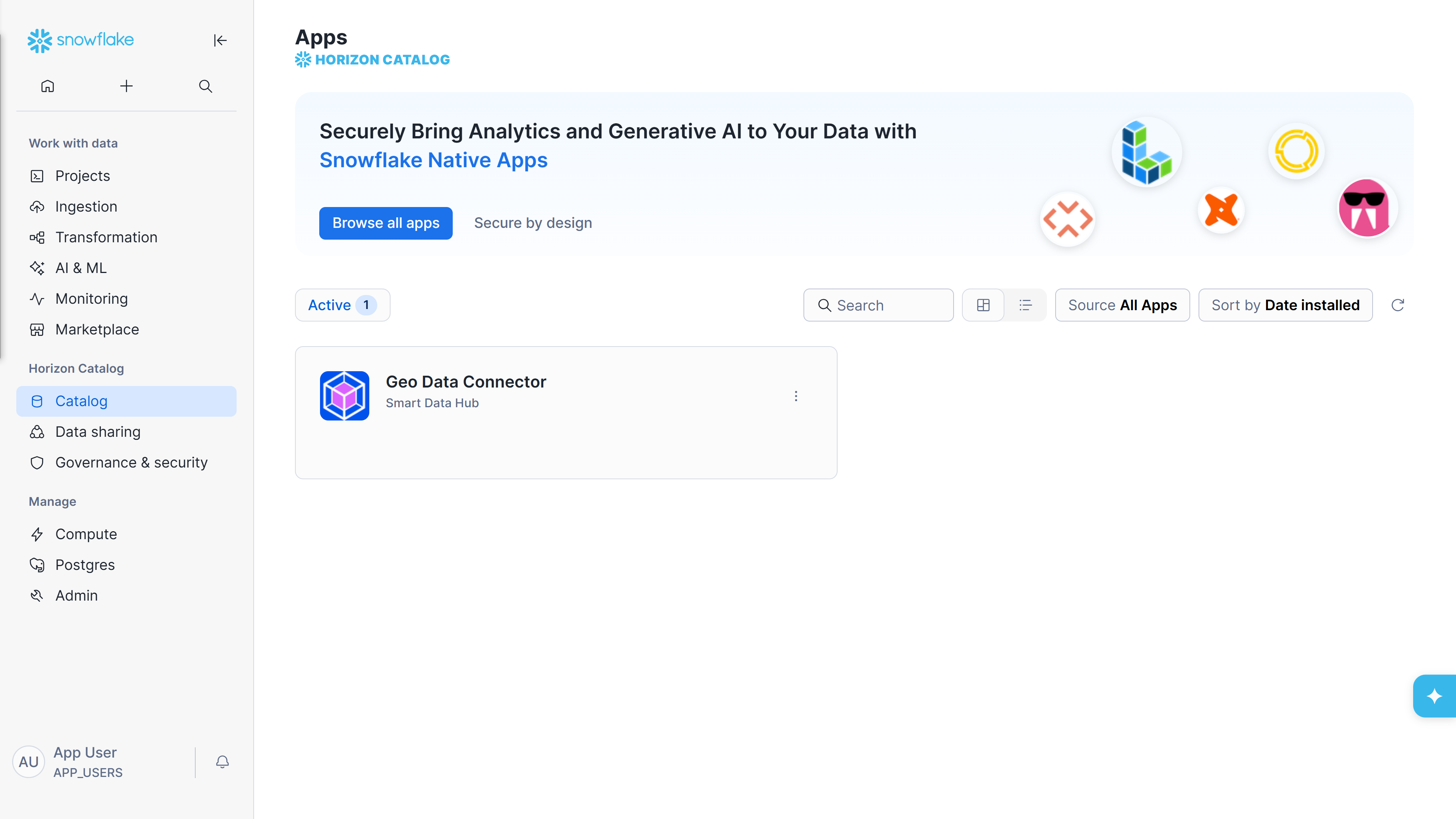
Snowsight Catalog page showing installed apps with Geo Data Connector
Start the Connector
The App Launcher opens showing the current status. Click Start App to start the Connector.
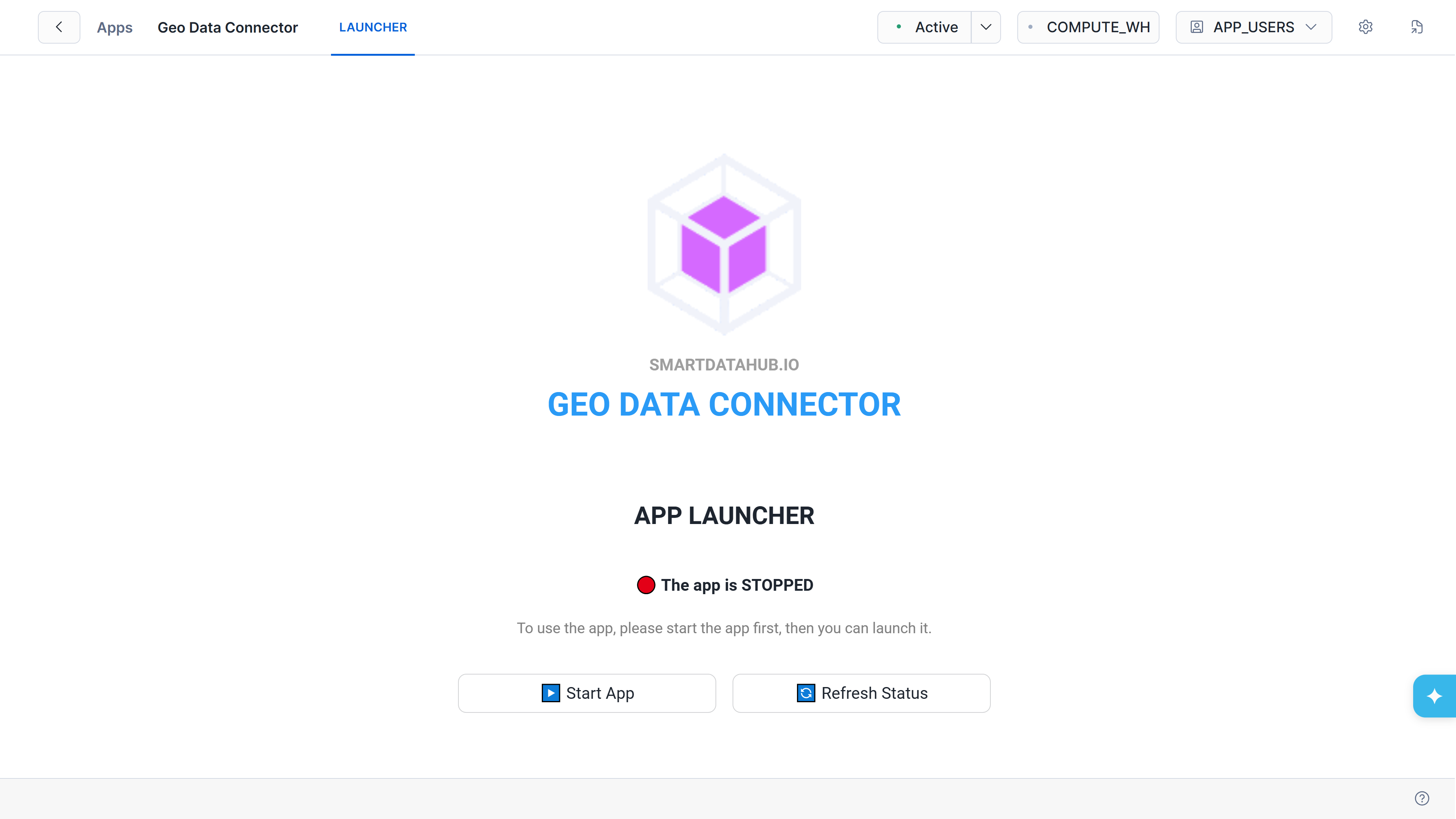
App Launcher in STOPPED state with Start App and Refresh Status buttons
Wait for Startup
A message confirms that the Connector is being started. This takes about two minutes. The status updates automatically — you can also click Refresh Status to check manually.
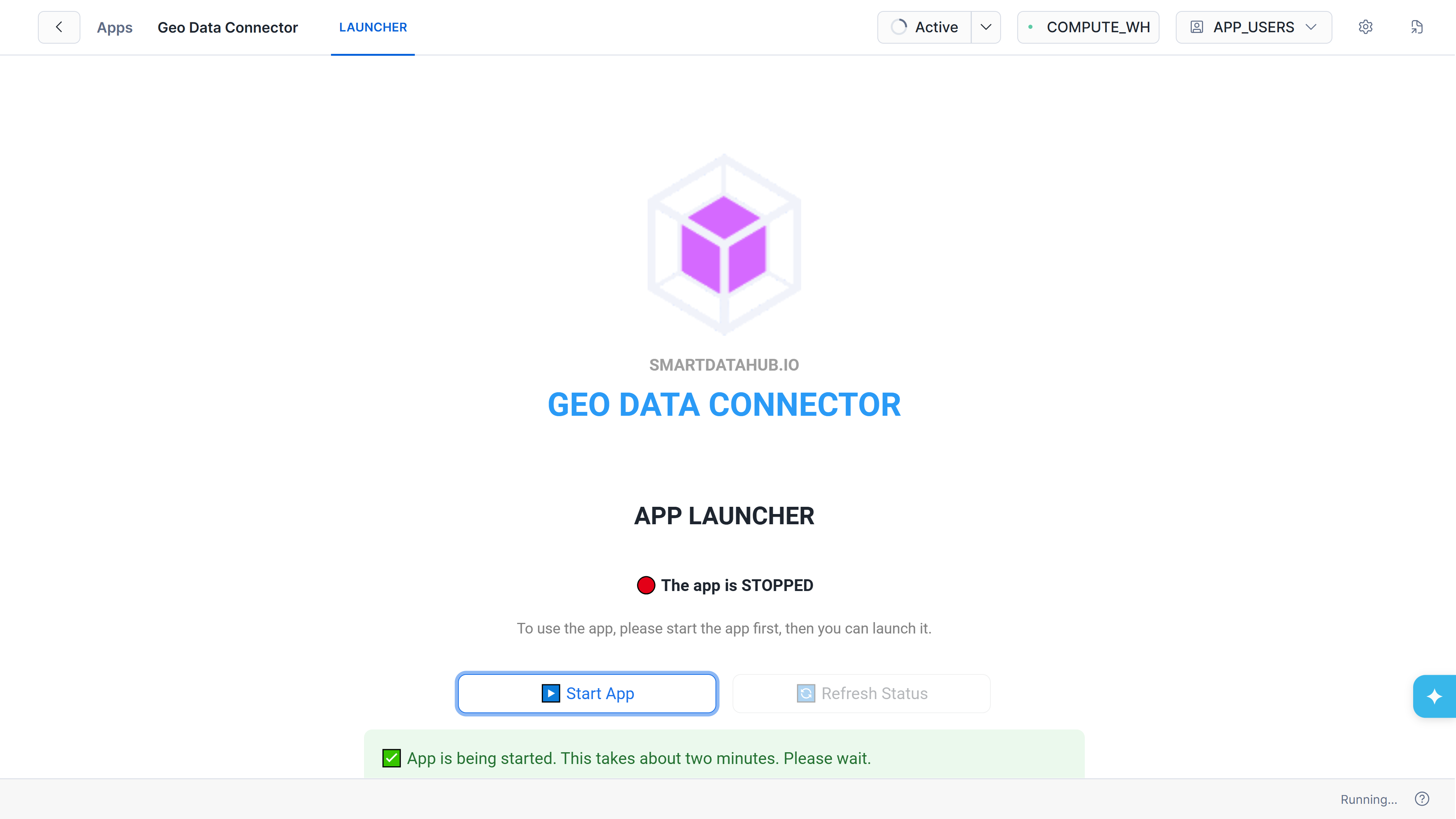
App Launcher showing startup progress
Launch the Application
Once the status changes to RUNNING, copy the URL displayed on the App Launcher and paste it into a new browser tab.
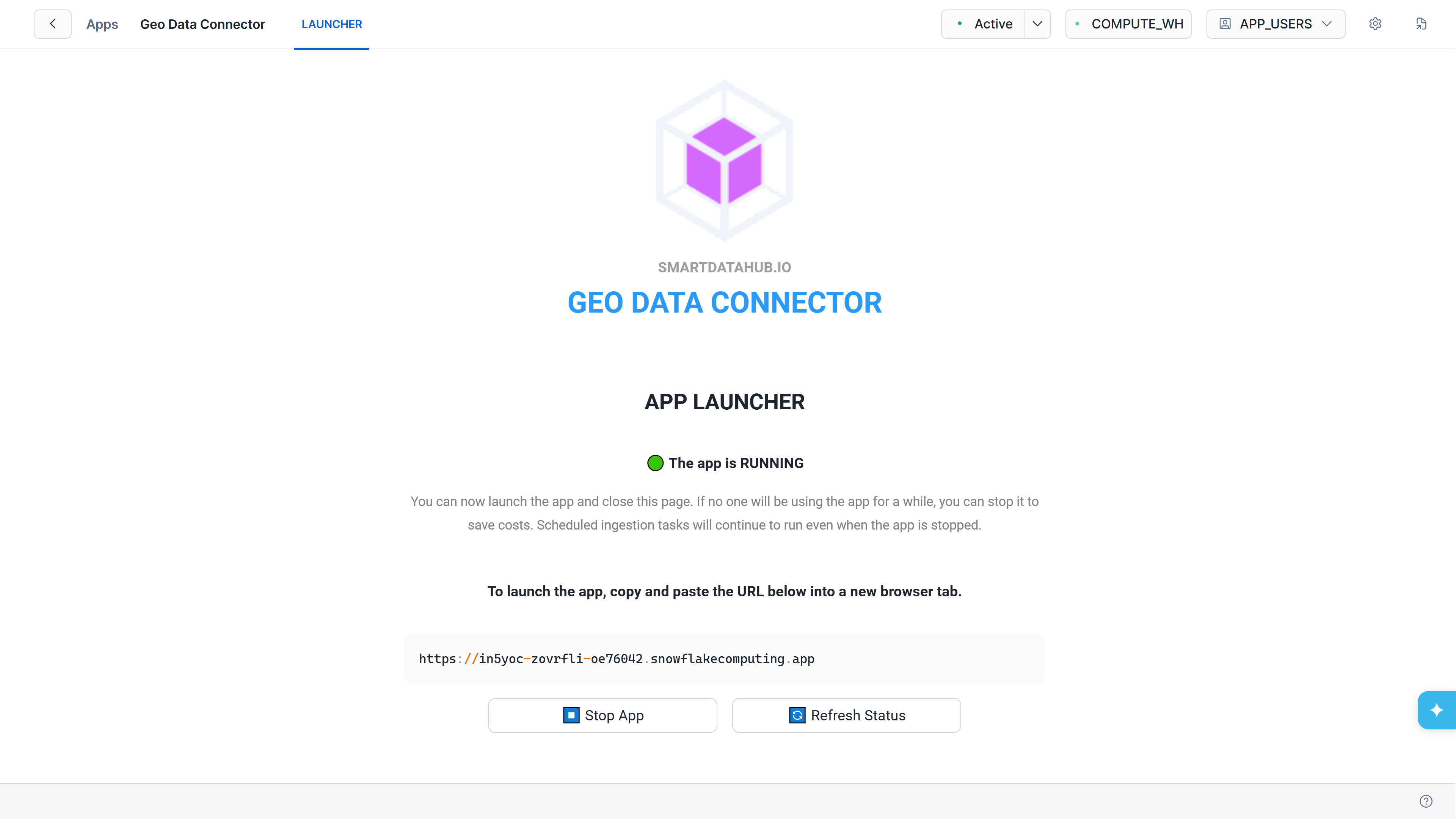
App Launcher in RUNNING state with the application URL
Tip: When you are not actively using the Connector, you can stop it to save compute costs. Scheduled ingestion tasks will continue to run even when the application is stopped.
Sign In
Authenticate using your Snowflake credentials. The sign-in method depends on your organization's authentication setup.
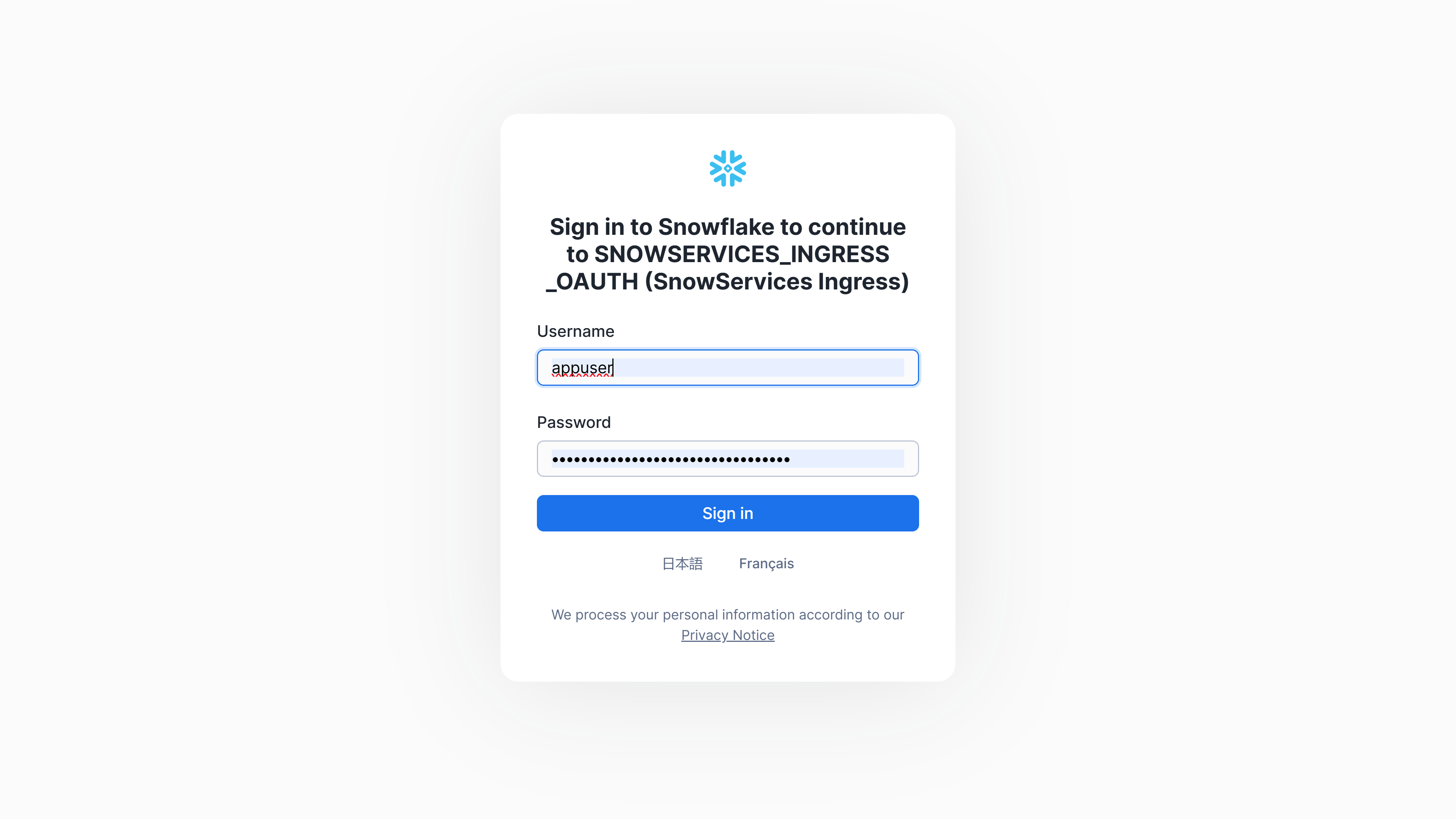
Snowflake authentication sign-in page
After signing in, Geo Data Connector opens and is ready to use.