
Appearance
Managing Connections
When you successfully connect to a data source in the Explorer view, the connection is automatically saved.
Data Source Connections View
Select Connections from the main menu to see all saved connections and their details.
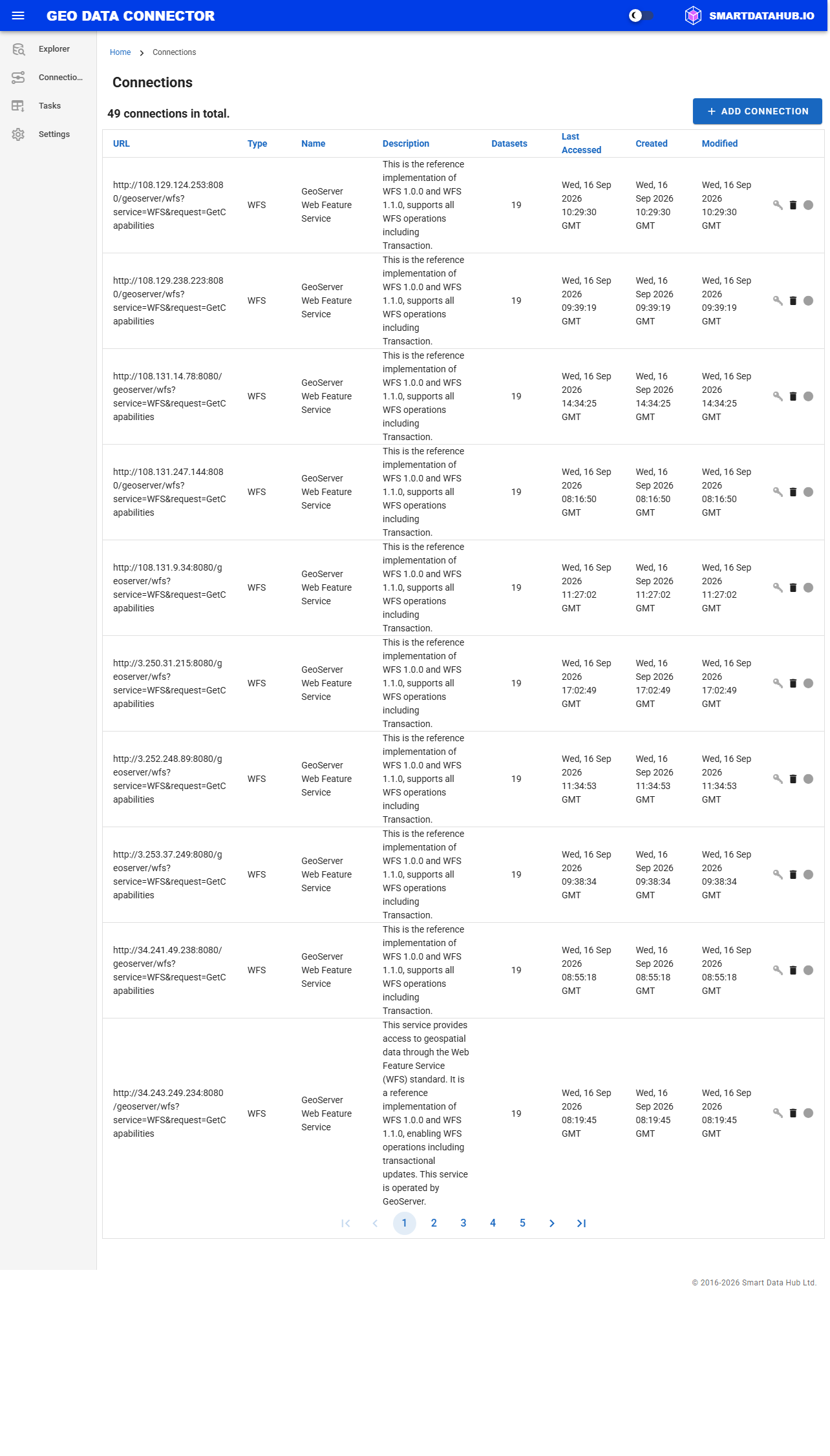
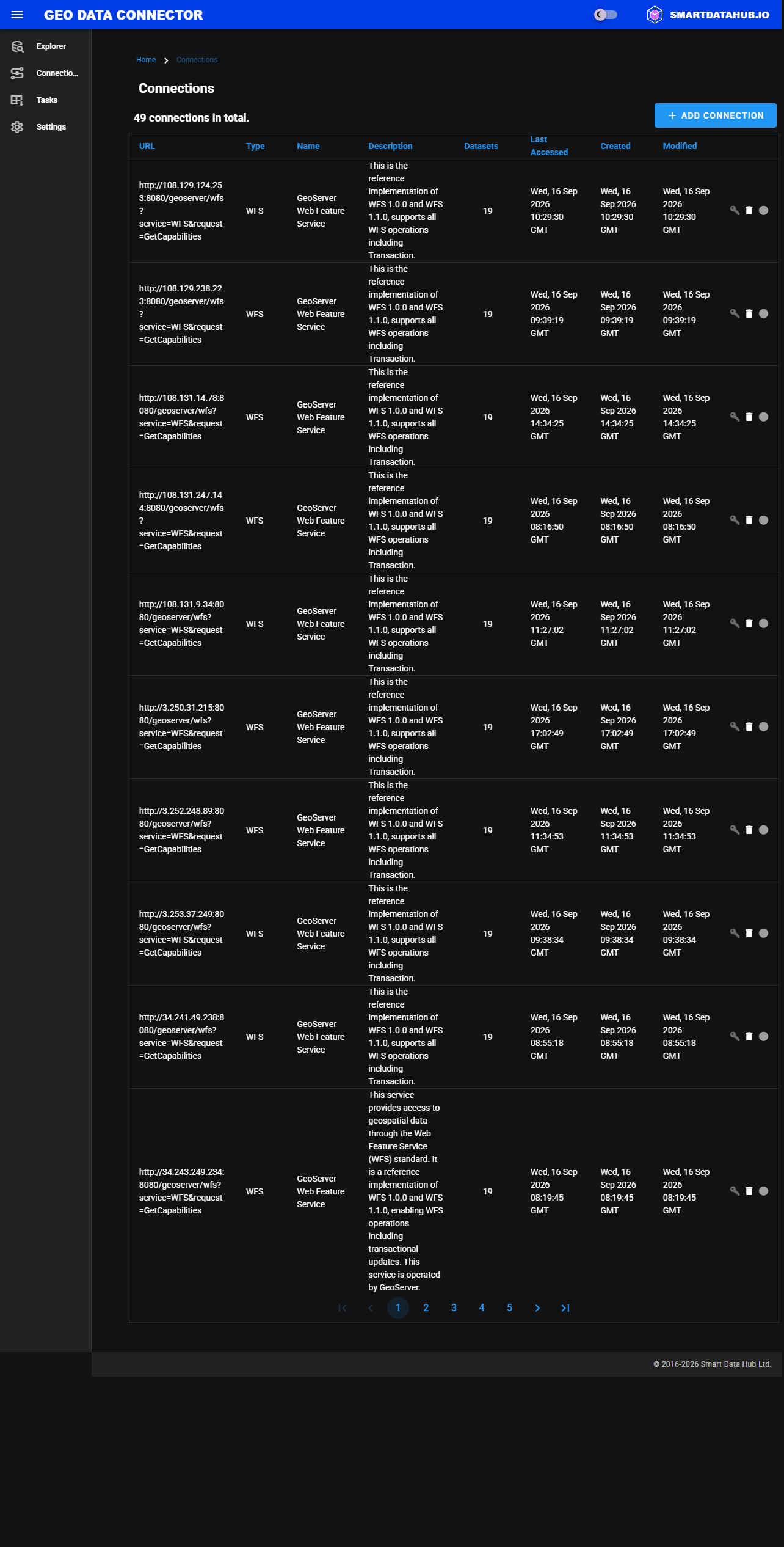
Data Source Connections view showing saved connections
Connection Details
| Column | Description |
|---|---|
| URL | The URL of the geospatial data source (e.g., WFS endpoint) |
| Type | The type of the data source (e.g., WFS) |
| Health | A colored indicator showing the current connectivity status of the data source: green (healthy), orange (slow response), red (unreachable), blue (recovering), or gray. A gray dot says "Service not yet checked" when the service has never been checked, "Service health check pending" for the moment the page is still asking, or "Service health unavailable" when the status could not be obtained this time (this does not mean the service is down). Hover a colored dot for details including uptime and average response time; see Service Health Indicators. |
| Name | The title of the data source, retrieved from its metadata |
| Description | A summary or abstract of the data source, also retrieved from its metadata |
| Datasets | The number of datasets discovered from the data source |
| Last Accessed | The most recent date and time the connection was used (GMT) |
| Created | The date and time when the data source connection was first saved (GMT) |
| Modified | The date and time when the connection details were last updated (GMT) |
| Authentication | A lock icon indicates that the connection has authentication configured |
| Actions | Options for managing the connection: configure authentication (key icon), delete (trash icon) |
Configuring Authentication
Some data sources require access credentials (such as an API key or username and password). You can configure authentication for any saved connection.
- In the Connections view, click the key icon in the Actions column for the connection you want to configure.
- In the Authentication Settings dialog, select the authentication method:
- None — No credentials required (default).
- Basic Auth (API Key) — Provide a username or API key, and optionally a password.
- Enter the credentials and click Save.
Connections with authentication configured display a lock icon next to them in the list.
Your credentials are stored encrypted and are never displayed after saving. When updating credentials on an existing authenticated connection, leave a field empty to keep its current value. To remove authentication, change the method back to None.
When you create an ingestion task from an authenticated connection, the task automatically inherits the connection's authentication settings.
Tip: Always enter service URLs without credentials in the query string. If you have a URL like
https://example.com/wms?apikey=YOUR_KEY, enter onlyhttps://example.com/wmsas the URL, then configure the API key in Authentication Settings. This ensures your credentials are stored encrypted and never exposed in logs or monitoring systems.
Note: Authenticated connections are available on the paid edition only. On the free edition, the authentication option is not available.
Deleting a Connection
To delete a data source connection, click the delete icon in the Actions column of the corresponding data source row in the list.
Note: Deleting a data source connection removes it from the saved connections but does not delete any existing ingestion tasks that may have been configured for datasets from that source.