
Appearance
Application Settings
The Settings view lets you configure the ingestion target database, auto-suspend behavior, and email notifications. Select Settings from the main menu to access these options.
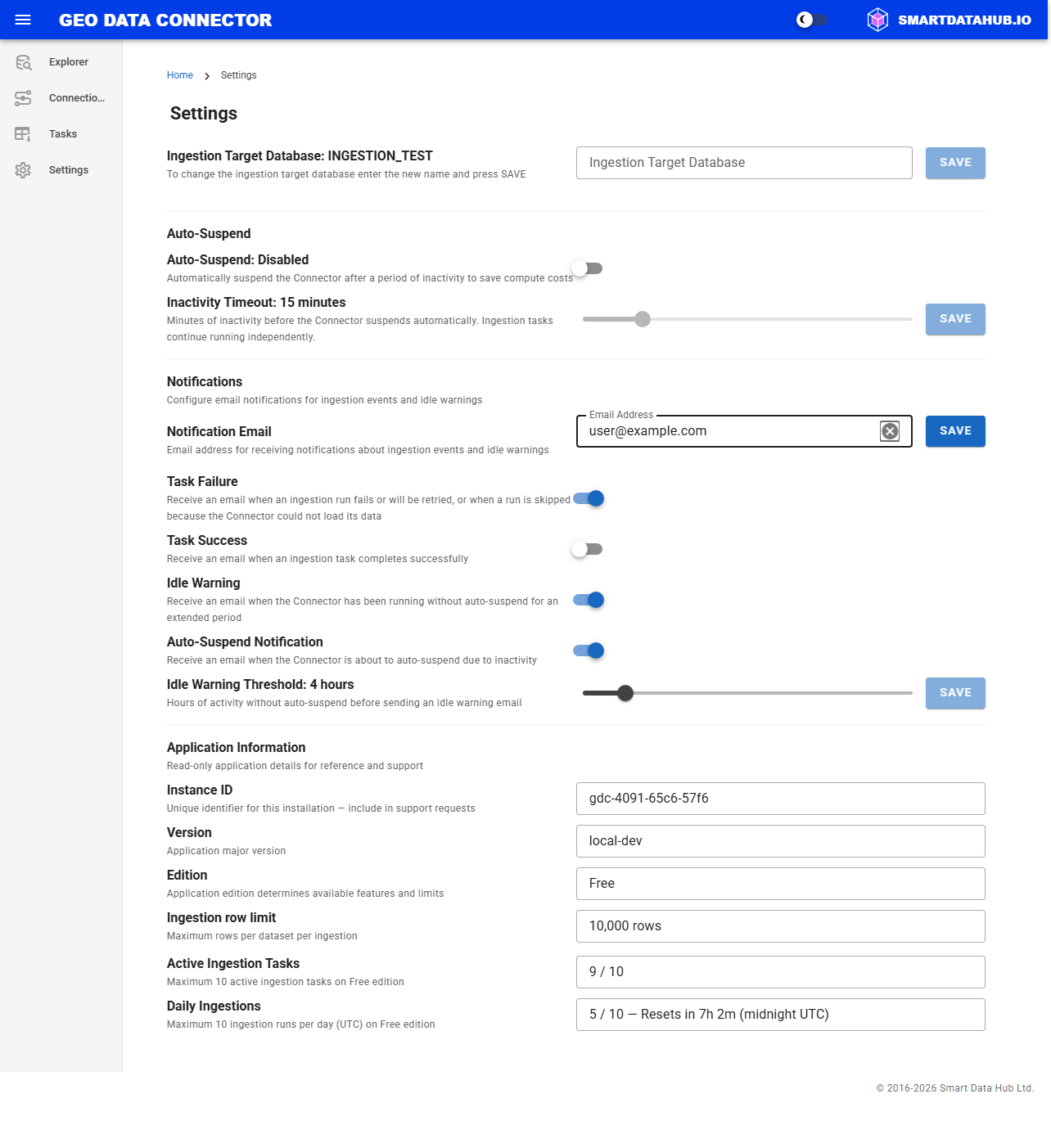
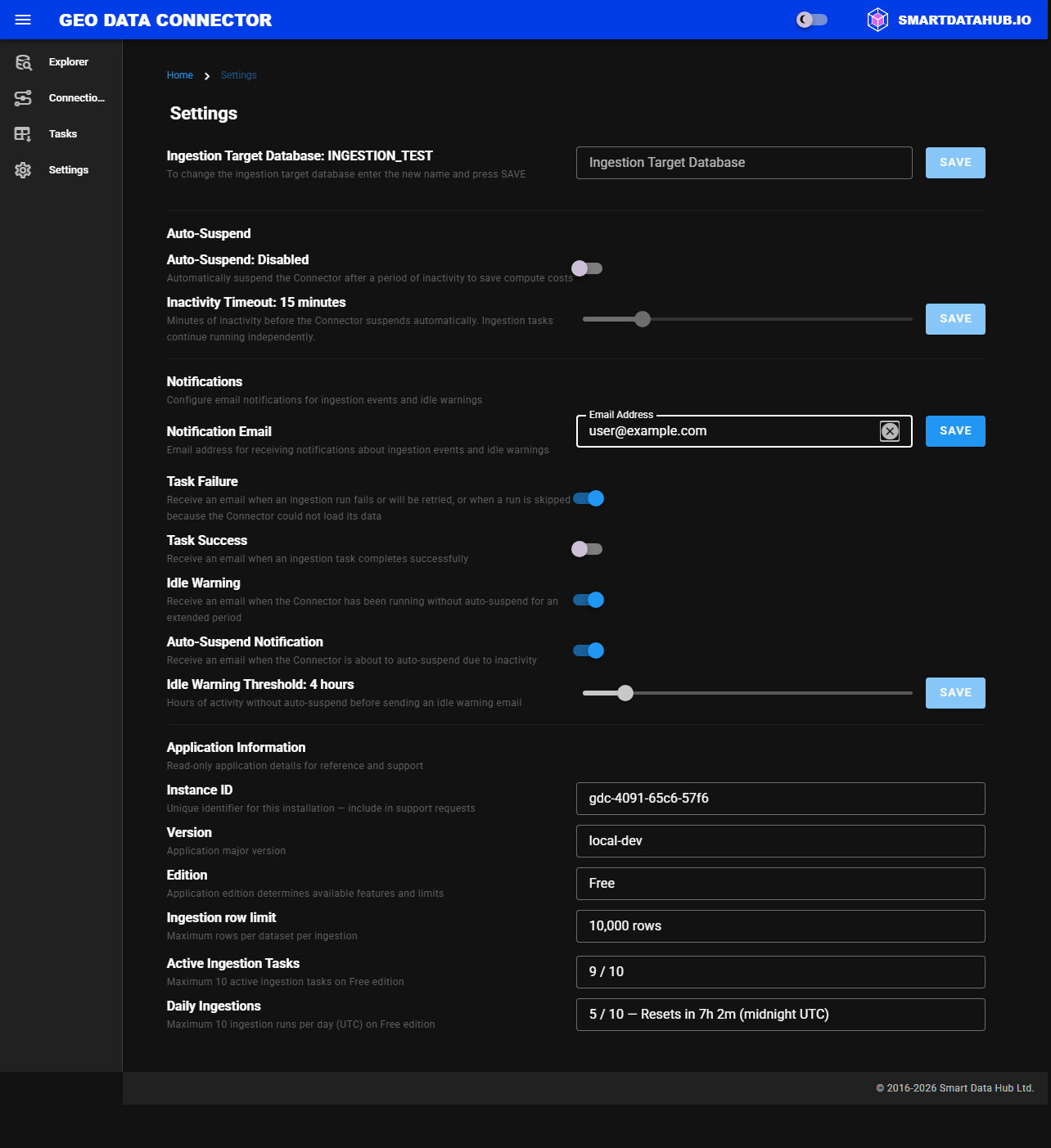
Application Settings view
Ingestion Target Database
The ingestion target database is where all ingested datasets are stored. It is configured during first launch and must be set before creating any ingestion tasks.
Key Points
- The database must be created by the Connector to ensure proper ownership and permissions. Once created,
APP_ADMINusers have full control, whileAPP_USERusers have read access to all tables and views. - Datasets are organized under schemas automatically generated based on the data source domain.
- The name must comply with Snowflake's naming conventions:
- Start with a letter
- Use only alphanumeric characters and underscores
- Be no longer than 256 characters
To change the target database, enter a new name and click Save.
Note: Changing this setting takes effect on the next ingestion run for all tasks — both new and existing. Previously ingested data remains in the original database and is not moved or deleted.
Auto-Suspend
Auto-suspend helps manage compute costs by automatically suspending the Connector after a period of inactivity. When suspended, the Connector stops consuming compute credits until it is manually resumed.
| Setting | Description |
|---|---|
| Auto-Suspend | Toggle to enable or disable automatic suspension. |
| Inactivity Timeout | The number of minutes of inactivity before the Connector suspends (5 to 60 minutes). Adjust the slider and click Save. |
Note: Ingestion tasks continue running independently of the Connector's active state. Suspending the Connector does not interrupt any scheduled or in-progress ingestion tasks.
Notifications
Email notifications keep you informed about ingestion task outcomes and idle compute usage without needing to check the Connector manually.
Email Address
Enter a notification email address and click Save. All notification toggles are disabled until an email address is configured.
Notification Types
| Setting | Default | Description |
|---|---|---|
| Task Failure | On | Receive an email when an ingestion run fails or will be retried, when a run is skipped because the Connector could not load its data, or when the Connector switches a task off because it is no longer set up. |
| Task Success | Off | Receive an email when an ingestion task completes successfully, including the target table and row count. |
| Auto-Suspend | On | Receive an email when the Connector is about to suspend due to inactivity. Includes the configured timeout duration. |
| Idle Warning | On | Receive an email when the Connector has been running without auto-suspend enabled for an extended period. |
| Idle Warning Threshold | 4 hours | The number of hours before an idle warning is sent (1 to 24 hours). Adjust the slider and click Save. Only active when both the idle warning toggle is on and auto-suspend is off. |
Note: The idle warning is sent once per session. If the Connector is suspended and resumed, the timer resets. The warning is only relevant when auto-suspend is disabled — if auto-suspend is enabled, the Connector will suspend itself automatically.
Notifications are delivered on a best-effort basis and do not affect the operation of ingestion tasks.
Ingestion Row Limit
The Ingestion row limit shows the maximum number of rows the Connector will ingest per dataset per ingestion run.
| Edition | Row limit |
|---|---|
| Free | 10,000 rows per dataset |
| Paid | Unlimited |
This is a read-only field that reflects the edition of the Connector installed in your Snowflake account. The value shown is "10,000 rows" on the Free edition and "Unlimited" on the Paid edition. You do not need to configure this setting — it is determined automatically based on the installed edition.
Settings Scope
Changes take effect immediately after saving and apply to all users of the Connector within your Snowflake account.