
Appearance
App Launcher
The App Launcher is the entry point for starting, stopping, and monitoring the main application.
Starting and Stopping the Application
Open the App Launcher in Snowsight.
When Application is Stopped
When the Connector is not running, its status shows STOPPED and a Start App button is available. Click it to start the Connector.
The status changes to STARTING while the Connector launches. This typically takes about two minutes.
When Application is Running
Once running, the status shows RUNNING and a Stop Application button appears. Click it to shut down the Connector.
Cost Savings Tip: Stop the Connector when not in use to reduce compute costs. Automated ingestion tasks continue to run in the background regardless of whether the Connector is started or stopped.
Status Monitoring
The App Launcher refreshes the status automatically. You can also click Refresh Status to check manually.
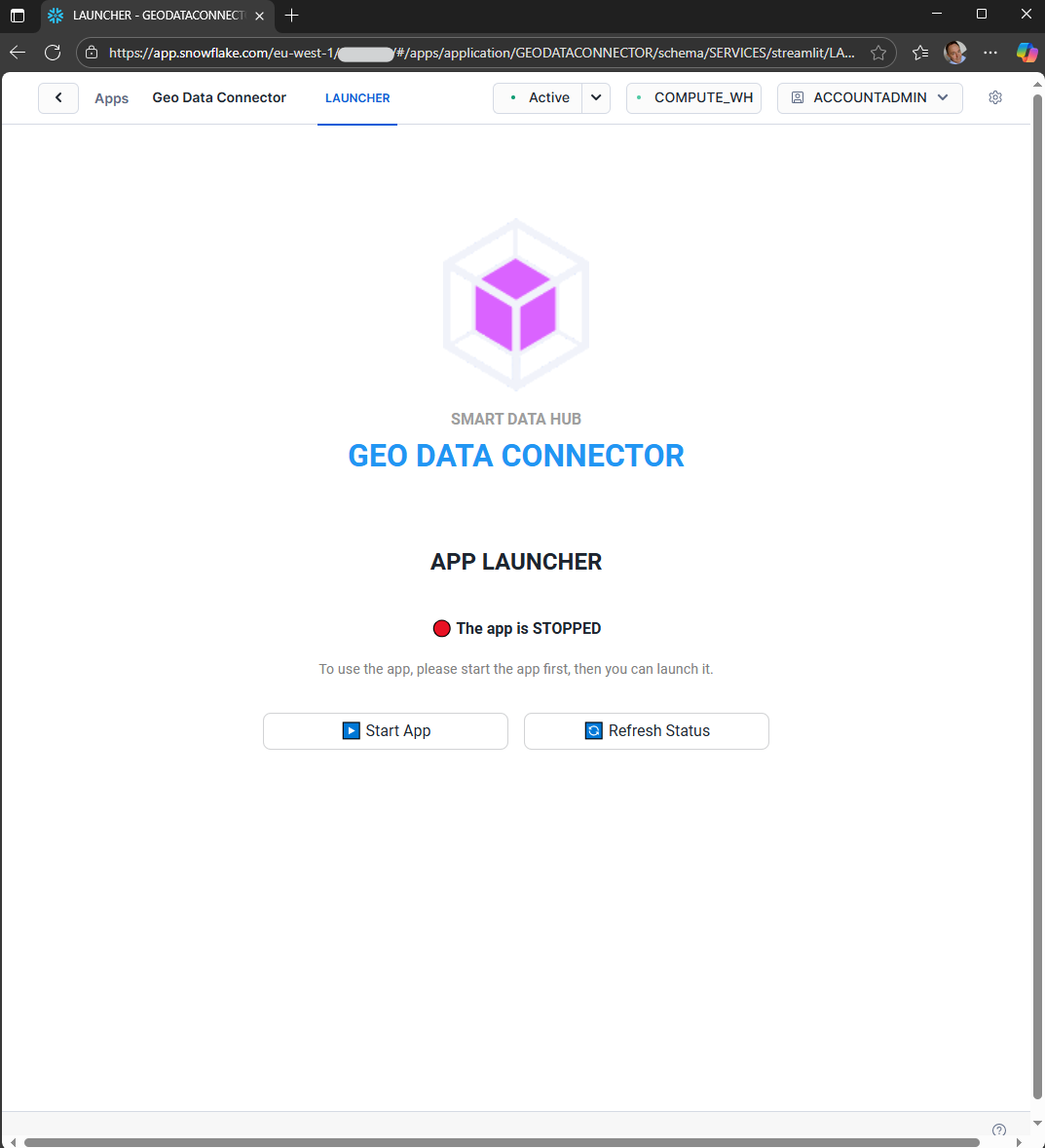
App Launcher showing the application in STOPPED state
Target Ingestion Database Setup at First Launch
On first launch, you are prompted to specify the target ingestion database — the Snowflake database where all ingested datasets will be stored.
Enter the database name and press Enter. The Connector creates the database in your Snowflake account.
Important Considerations
Application Ownership: Let the Connector create the database so it has ownership. If the database already exists or was created manually, the Connector may not be able to manage schemas, tables, or dataset updates.
Naming Conventions: The database name must follow Snowflake's standard naming conventions:
- Must begin with a letter
- Contain only letters, numbers, or underscores
- Be no more than 256 characters in length
First Launch Only: This prompt only appears at first launch. You can review and update the target database later from the Settings view.
Handling Inactive Snowflake Streamlit Applications
The App Launcher is a Snowflake Streamlit application and may be automatically suspended after a period of inactivity. When this happens, the interface becomes unresponsive.
To Reactivate
Refresh your browser and wait for the App Launcher to reload.