
Appearance
Step 6: Download Your Data
Once a subscription reaches SUCCESS status, the retrieved data is available to download. Download links are valid for approximately 12 hours from when the run completed.
Finding the download
There are two ways to access download links:
From the Subscriptions list
On the Subscriptions screen, the Download column shows a green Available chip with a countdown (e.g., "Available 18h") when data is ready. Click the row to open Subscription Details, where you can download the files.
From Subscription Details
Click any subscription row on the Subscriptions screen to open its detail page. If a completed run has downloadable files, a download section appears showing each file's name, size, and an expiring link.
Click a file link to download it directly. If the links have expired, re-run the subscription to generate fresh ones — click the Run Now action on the Subscriptions screen or the Run Now button on the Subscription Details page.
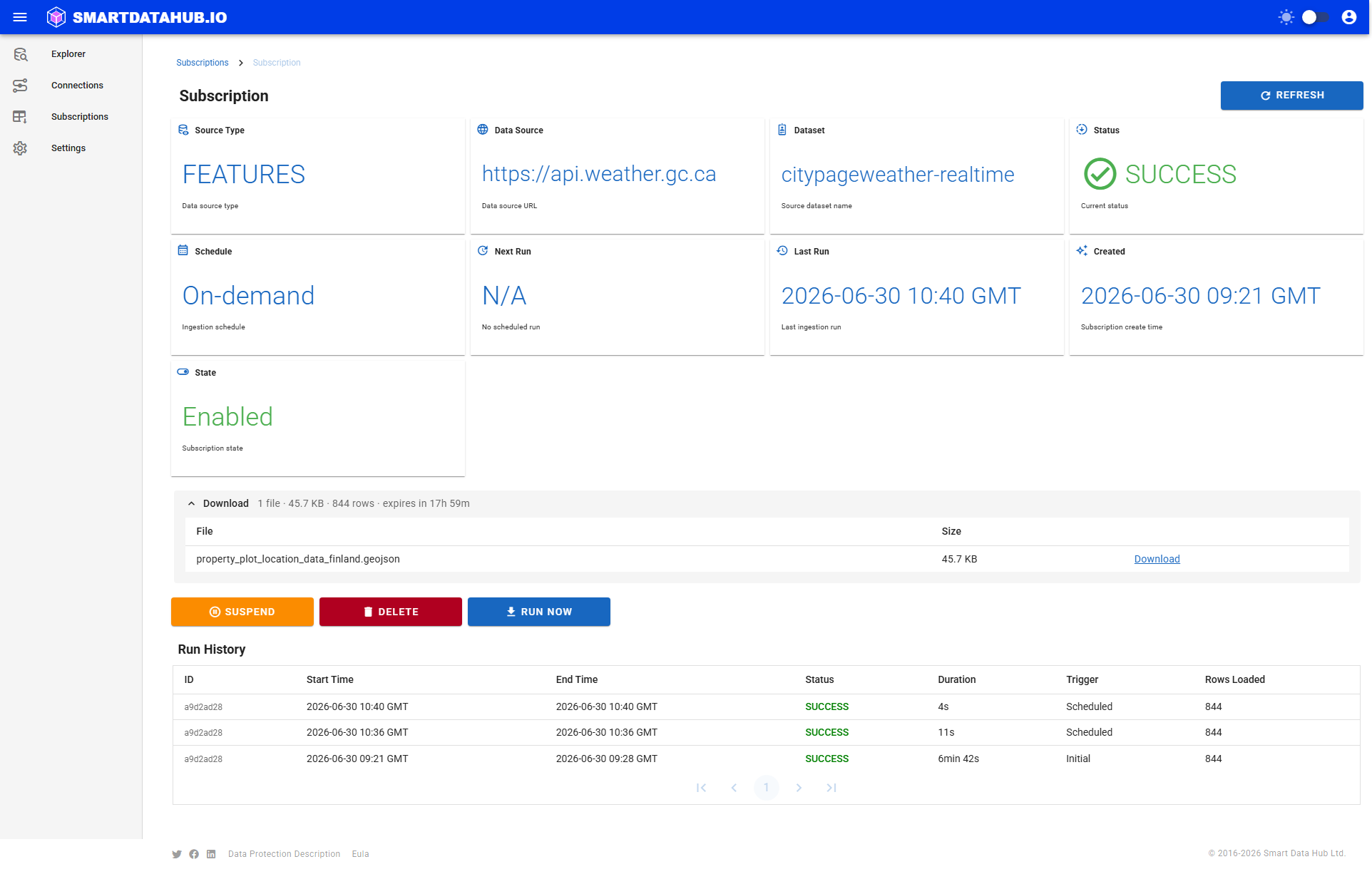
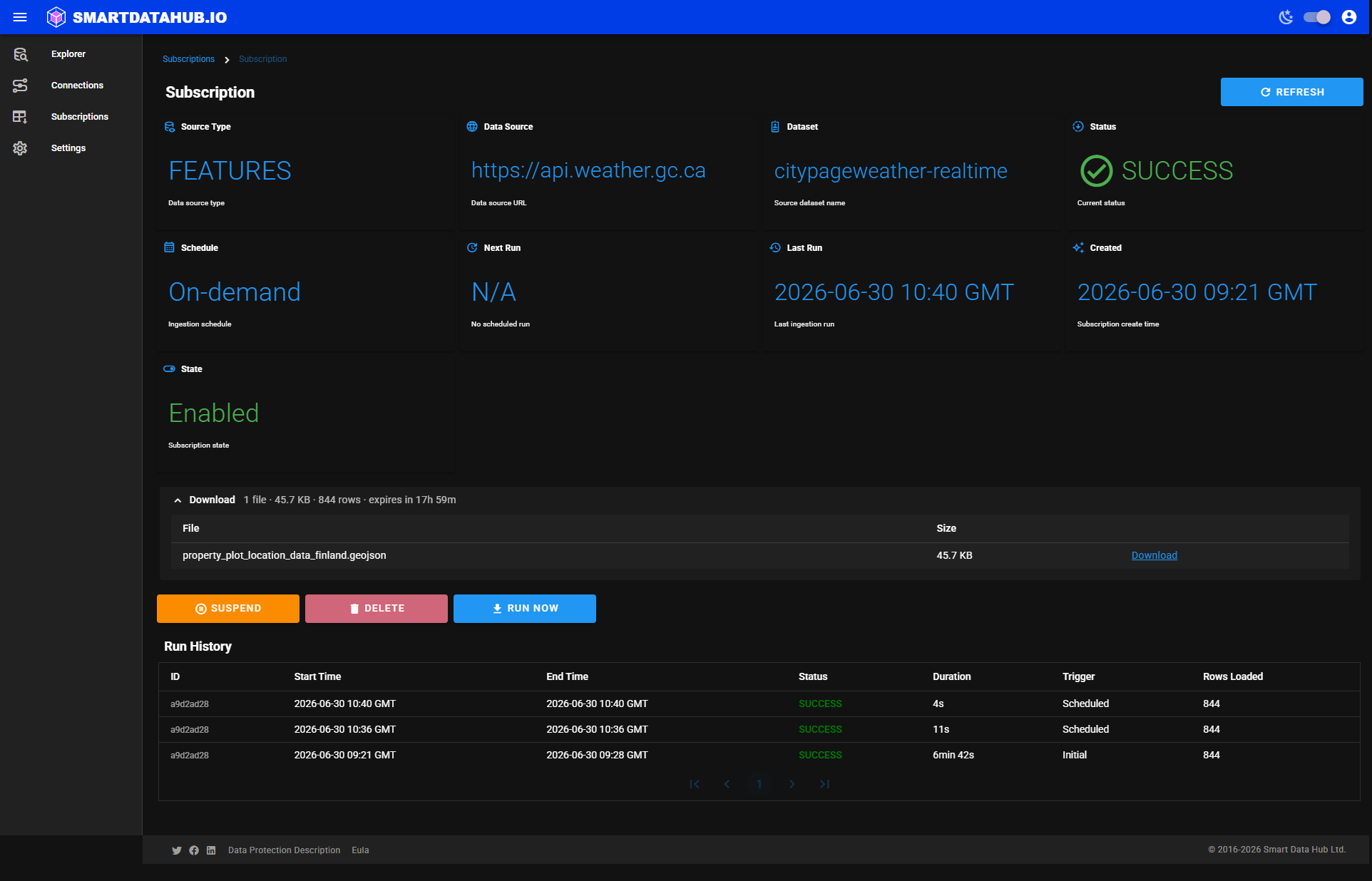 Subscription Details — file links appear when a run has completed successfully.
Download expiry
Download links expire approximately 12 hours after they are generated. The Download column on the Subscriptions screen shows the remaining time. After expiry, the chip shows Expired and you need to re-run the subscription to get fresh links.
Using the data
The downloaded files are Apache Parquet with geometry as GeoJSON strings in the GEOM_WGS84 column. Load them into your data platform, GIS tool, or analytics environment — see Loading into your platform for verified snippets for BigQuery, Snowflake, DuckDB, and geopandas.
You are done
You have completed the full Geo Data Connector workflow:
- Signed in
- Found a dataset
- Reviewed its details
- Subscribed and started a run
- Monitored the run to completion
- Downloaded the data
To go deeper, explore the Features section for detailed documentation on each part of Geo Data Connector.