
Appearance
Subscriptions
A subscription represents your connection to a specific dataset from a specific data source. When you enable a subscription, Geo Data Connector retrieves the dataset and makes the results available for download. You can run a subscription once (on-demand), or on a recurring schedule (paid tier).
The Subscriptions screen
Click Subscriptions in the navigation to see all your subscriptions.
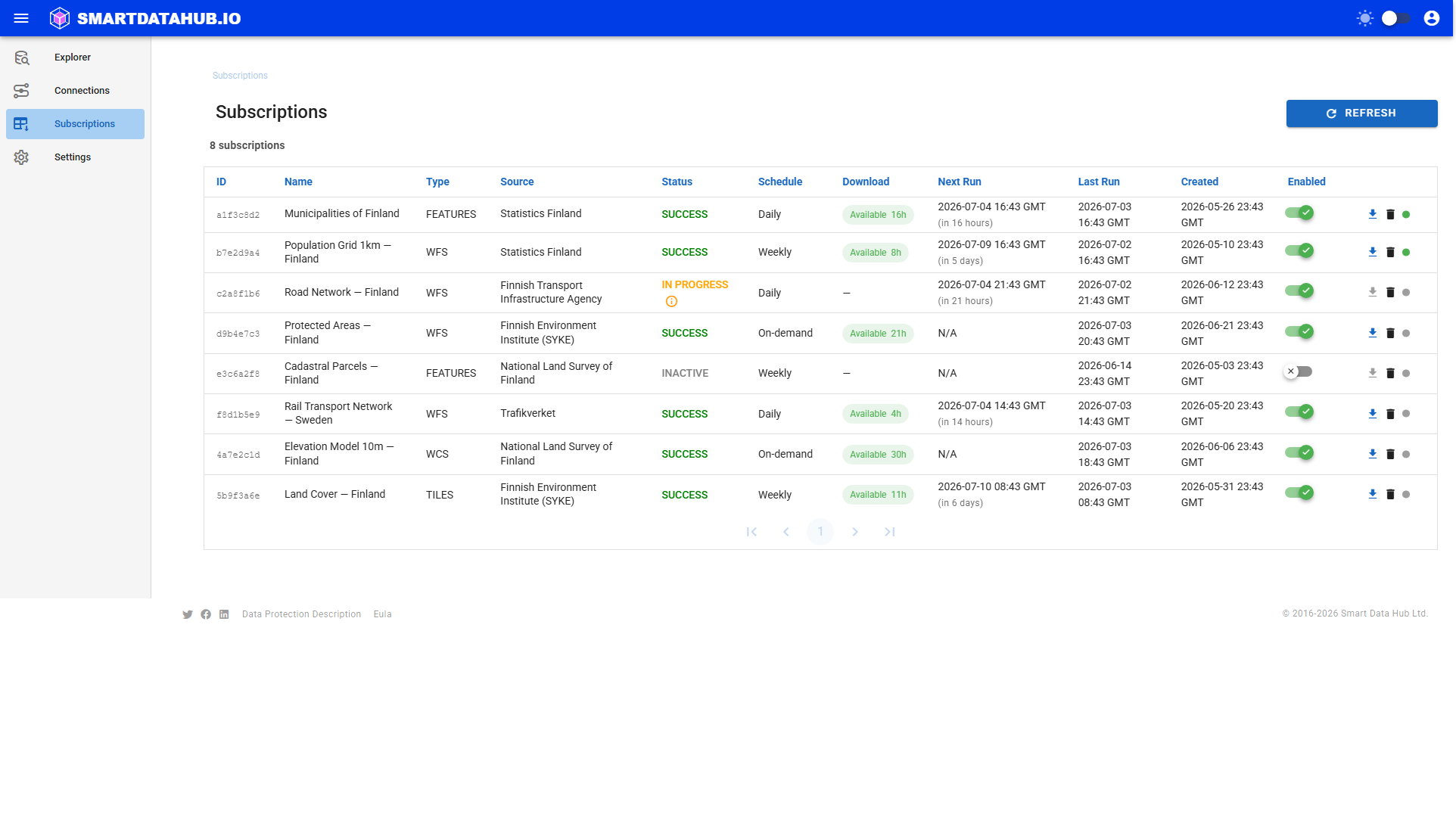
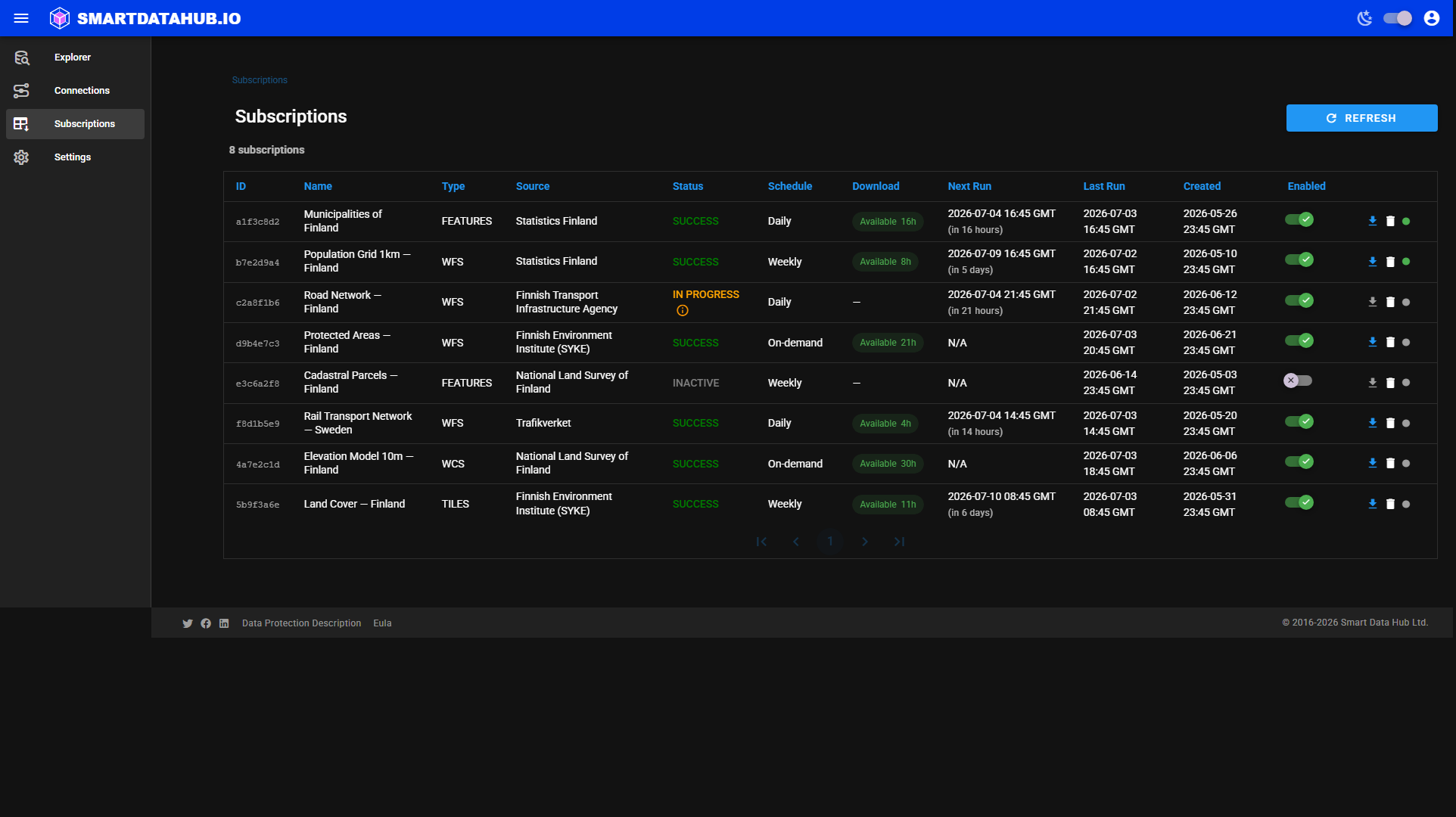 Subscriptions list — status, schedule, download availability, and actions for each subscription.
The table columns are:
| Column | What it shows |
|---|---|
| ID | A short identifier for this subscription (click to copy the full ID) |
| Name | The dataset name or title |
| Scope | A summary of the requested area/resolution for a scoped subscription, or "full dataset" |
| Type | The data source type (WFS, WCS, etc.) |
| Source | The data source name or URL |
| Status | Current status (see Status values below) |
| Schedule | On-demand, Daily, Weekly, or Monthly |
| Download | Whether downloaded data is currently available and the time remaining |
| Next Run | When the next retrieval is scheduled (recurring subscriptions) |
| Last Run | Timestamp of the most recent run |
| Created | When the subscription was created |
| Enabled | Toggle to enable or suspend the subscription |
| Actions | Run Now, Delete, Open dataset, and service health indicator |
Click any row to open Subscription Details.
Status values
| Status | Meaning |
|---|---|
| CREATED | Subscription just created; the first run is starting. |
| IN PROGRESS | Geo Data Connector is actively retrieving the dataset. Hover the info icon for the current phase. |
| SUCCESS | The last run completed successfully. Data files are available to download. |
| FAILED | The last run failed and the subscription is automatically disabled; see the info icon for details. For an on-demand subscription, click Retry (Run Now) to recover in one click. For a scheduled (daily/weekly/monthly) subscription, use the Enabled toggle to resume it first. |
| RETRYING | A run did not complete on the first attempt; Geo Data Connector is retrying automatically. The info icon shows the retry count and next attempt time. |
| SKIPPED | The run was skipped (for example, the daily limit was reached for the day). |
| INACTIVE | The subscription is suspended. No new runs will start until you enable it again. |
Creating a subscription
Subscriptions are created from the Dataset Details page: click the subscription status line (or open the Subscriptions tab below the dataset's columns) and click Add subscription. This opens a dedicated page where you choose a schedule and, optionally, limit the subscription to part of the dataset. See Step 4: Subscribe for the full walkthrough.
You can also create subscriptions programmatically using the API — including scoped subscriptions.
Scoped subscriptions
For a dataset that's larger than you need — either because you only care about one region, or because its full size exceeds your tier's row limit — you can create a scoped subscription instead: one limited to a smaller geographic area and/or a coarser resolution, rather than the dataset's full extent. Scoped subscriptions are currently available for coverage-family sources (WCS, OGC API Coverages), image-family sources (WMS, OGC API Maps), tile sources (OGC API Tiles vector tiles; WMTS and OGC API Tiles map tiles — scoped by area and zoom level), and vector-family sources (WFS, OGC API Features — scoped by area; vector data always keeps its full precision). Map and vector tiles are supported on the standard web-mapping tile grids (WGS 84 geographic, EPSG:4326, and Web Mercator, EPSG:3857); a tile dataset published on a different or unrecognized tile grid returns a "not yet available … for this dataset's tile grid" response. Other source types return a "not yet available for this source type" response, with support for further source types and tile grids planned.
Scoping in the web app. The subscription create page (reached via Add subscription on the Dataset Details page — see Creating a subscription above) offers a Limit area or resolution panel: draw a smaller area on the map and, for supported source types, choose a coarser resolution. For a dataset too large to ingest in full, this panel opens automatically and a subset is required before you can create the subscription — the status line reads Too large for full ingestion instead of a plain dead-end, and is clickable straight into this flow (see Checking ingestibility). Leaving the panel closed (or the selection at the dataset's full extent) creates a normal, full-extent subscription. For coverage (WCS) sources, if your current selection is over the limit at native resolution, a Recommended for this area hint suggests a coarser pixel size to try. The exact size of your selection is checked when you create the subscription, not while you draw — see Step 4: Subscribe for the full walkthrough. A dataset already showing N subscriptions (not the Too large for full ingestion indicator above) can also be scoped for the first time, or re-scoped, from an existing subscription's own detail page — see Creating a new scope from an existing subscription below.
You can also scope a subscription via the API — use the scope field on subscription creation; see the API Reference for the request shape (a bounding area, and optionally a target resolution). A scoped subscription still shows up on this screen and behaves like any other subscription once created, with a scope indicator next to its name — the difference is only in what it retrieves.
When you create a scoped subscription, Geo Data Connector verifies the request and locks in ("freezes") the area and resolution for that subscription's lifetime — this takes a few seconds longer than an unscoped subscription, and you may see a "Verifying dataset size…" message while it completes.
A scope can't be edited once set. If you need a different area or resolution later, create a new subscription with the new scope — the original subscription and any data you've already downloaded from it are unaffected.
If your selected area contains no data (for example, it covers only cells the dataset has no values for), the run completes as SKIPPED with an explanatory reason — not as a failure — and the subscription stays enabled. To get data, create a new subscription with a different area, or subscribe to the full dataset.
"Needs re-scope"
A scoped subscription can occasionally outgrow the size budget it was created with — for example, if the source dataset grows over time, or if your account moves from the paid tier to the free tier. When this happens:
- The subscription shows a Needs re-scope badge next to its status, and Geo Data Connector automatically suspends it (status becomes INACTIVE).
- Data already retrieved is preserved and stays downloadable until its download link expires.
- To keep receiving this data, create a new subscription with a smaller area or a coarser resolution (or upgrade, if the cause was moving to the free tier).
See Subscription Didn't Run for the specific reasons behind the badge and what to do next.
Free tier rules for scoped subscriptions
- A scoped subscription is checked against the free tier's 10,000-row limit using the estimated size of the requested area/resolution, not the dataset's full size — so a small scope can succeed even on a dataset that's much larger overall.
- You can have up to 3 scoped subscriptions per dataset on the free tier. Each one also counts toward your overall 10-subscription limit.
Running a subscription immediately
To run a subscription outside its regular schedule, click the Run Now icon (download arrow) in the Actions column. Geo Data Connector starts a run immediately.
The Run Now action is available when:
- The subscription is enabled, or it's an on-demand subscription that's FAILED and disabled (see below).
- No run is currently in progress.
- The daily run limit has not been reached (free tier).
If a subscription is FAILED and disabled: for an on-demand subscription, the Run Now icon shows a distinct Retry cue (a "this was a failure" color/icon) and clicking it re-enables and re-runs the subscription directly — no separate step needed. For a scheduled (daily/weekly/monthly) subscription, Run Now stays unavailable — use the Enabled toggle to resume it first (this also restores its schedule); it then becomes eligible for its next scheduled run, or an immediate Run Now.
Changing the schedule
Click the Enabled toggle to open the subscription, or navigate back to the Dataset Details page and change the schedule selector. The change takes effect immediately.
On the free tier, only On-demand is available. Attempting to set a recurring schedule returns an error.
Enabling and suspending
The Enabled toggle in the table enables (ON) or suspends (OFF) a subscription.
- Suspending a subscription stops new runs from starting. Existing run results remain available until their download links expire.
- Resuming (re-enabling) a subscription makes it eligible for runs again. For an on-demand subscription, use Run Now to trigger the next run. If the subscription is currently FAILED (not just user-suspended), the toggle's label/icon reads Retry instead of Resume, as a visual cue that this recovers from a failure — the effect is the same either way (re-enable).
- On the free tier, you can have at most 10 enabled subscriptions at a time. Suspending a subscription frees a slot. Re-enabling a subscription — whether by Resume/Retry or by the on-demand direct-recovery Run Now above — is blocked with the same "reached the maximum" message if you're already at the limit.
Deleting a subscription
Click the Delete icon in the Actions column. Confirm in the dialog. Deletion is permanent and removes all run history.
Subscription Details
Click any subscription row to open its detail page. Subscription Details shows:
- A View dataset button — takes you back to the Dataset Details page this subscription was created from.
- A Re-scope or Scope button — see Creating a new scope from an existing subscription below.
- Metadata cards — Source Type, Data Source, Dataset, Status, Schedule, Enabled state, and (if a run is complete) the last row count.
- Scope card — for a scoped subscription, a map of the requested area, the resolution, and the frozen estimated size (labeled "up to ~N" for coverage/image sources — the actual delivered size can only be the same or smaller; an exact "≈N" for vector sources); absent for a full-dataset subscription.
- Run history table — A record of all runs, each with its status, start time, completion time, duration, trigger type (auto or manual), and rows loaded.
- Download section — File download links when a completed run has results available.
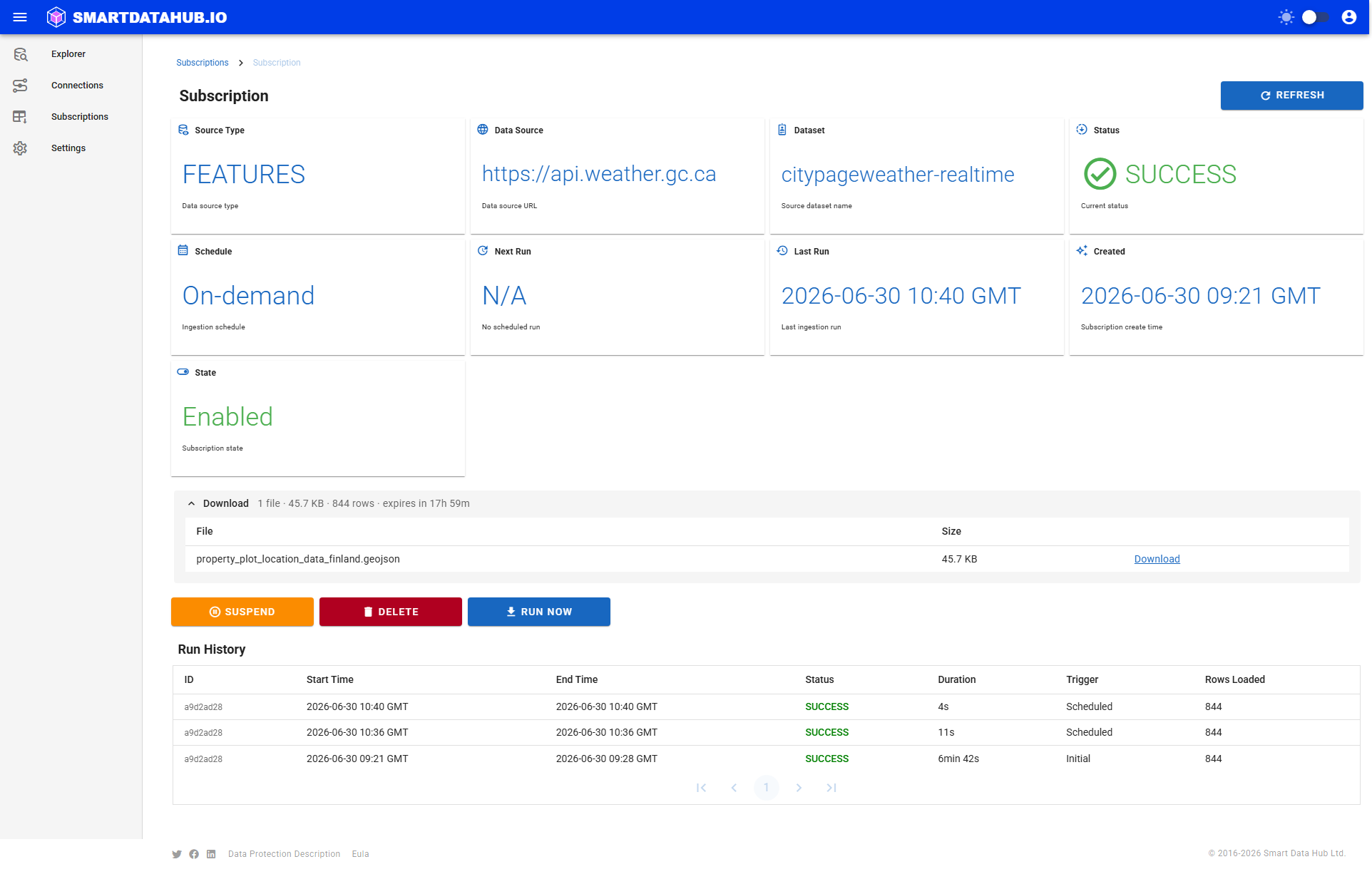
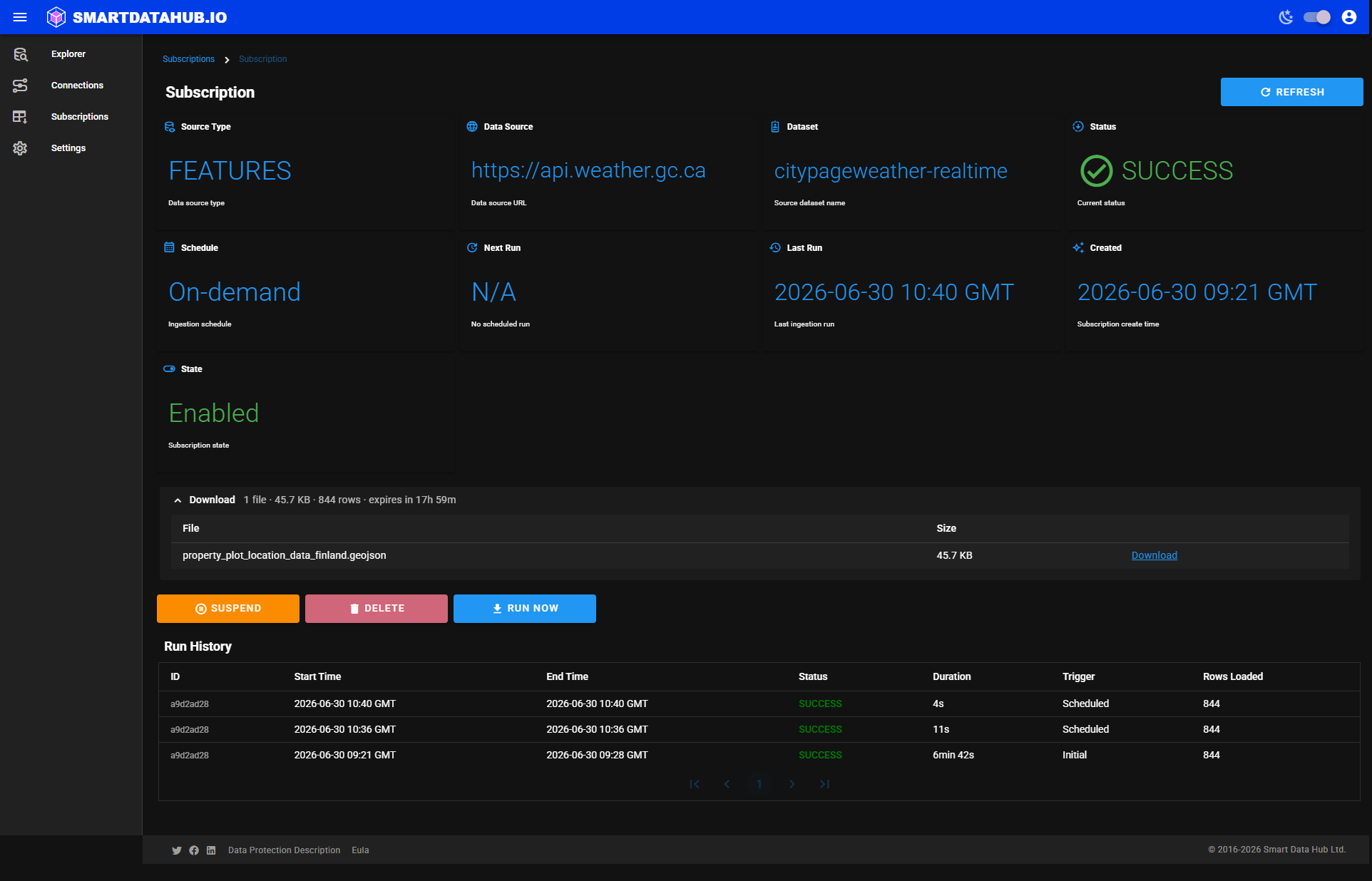 Subscription Details — metadata cards and run history.
Creating a new scope from an existing subscription
Subscription Details offers a button next to View dataset for creating a related scoped subscription, without navigating back through the dataset page:
- A scoped subscription shows a Re-scope button — opens the create page pre-filled with this subscription's current area and resolution, so you only need to adjust what's changing.
- A full (unscoped) subscription shows a Scope button instead — opens the create page for the same dataset with a blank selection, letting you limit it to an area or resolution for the first time.
Either button creates a new subscription (a scope can't be edited in place — see Scoped subscriptions above). Once the new subscription is created, Geo Data Connector automatically suspends the original — so you don't end up with two active subscriptions retrieving overlapping data. A confirmation appears on the Dataset Details page with an Undo action that re-enables the original if you change your mind. If the original could not be suspended automatically (rare), the confirmation says so explicitly — check its Enabled toggle and suspend it manually if you no longer need it. The original subscription and any data already downloaded from it are unaffected either way.
Run history
Each row in the run history table represents one retrieval attempt:
| Column | What it shows |
|---|---|
| Status | SUCCESS, FAILED, IN PROGRESS, SKIPPED, RETRYING |
| Started | When the run began |
| Completed | When the run ended (or "—" if still in progress) |
| Duration | How long the run took |
| Trigger | Whether the run was started automatically (by schedule) or manually (Run Now) |
| Rows loaded | Number of rows retrieved in this run |
Failed runs show an error message explaining what went wrong, in plain language. See Subscription Didn't Run for guidance on common failures.
Data responsibility
Data retrieved through your subscriptions originates from third-party services. You are responsible for reviewing and complying with any licensing terms or access restrictions that apply. Smart Data Hub retrieves and delivers the data; it does not grant any rights to the underlying data.