
Appearance
Exploring Data Sources
URL-based exploration lets you browse any OGC-compatible data service by pasting its URL into the Geo Data Connector search bar and clicking Explore. Geo Data Connector contacts the service, reads its structure, and presents what it finds in a navigable hierarchy.
Starting an exploration
On the home screen, paste a service URL into the search bar. Geo Data Connector detects that you have entered a URL and changes the button label to Explore. Click Explore to begin.
Exploration is asynchronous — a progress overlay appears while Geo Data Connector contacts the remote service. Progress messages indicate what Geo Data Connector is doing (reading the service, organizing results, and so on). Exploration typically completes within a few seconds, but some services are slower to respond.
Do not include credentials in the URL. For services that require authentication, set up a Connection first.
Discovery results
What Geo Data Connector returns depends on what it finds at the URL:
List of data sources
If the URL points to a catalogue or endpoint hosting multiple services, Geo Data Connector shows a list of data sources. Each entry shows the source name, type, description, and the number of datasets it contains. Click a source to drill in.
Data source with datasets
If the URL points to a single service, Geo Data Connector lists the datasets within it. Each row shows the dataset name, title, type, and other metadata. Click a dataset to open its Dataset Details page.
Single dataset
If the URL points directly to a specific dataset, Geo Data Connector opens the Dataset Details page.
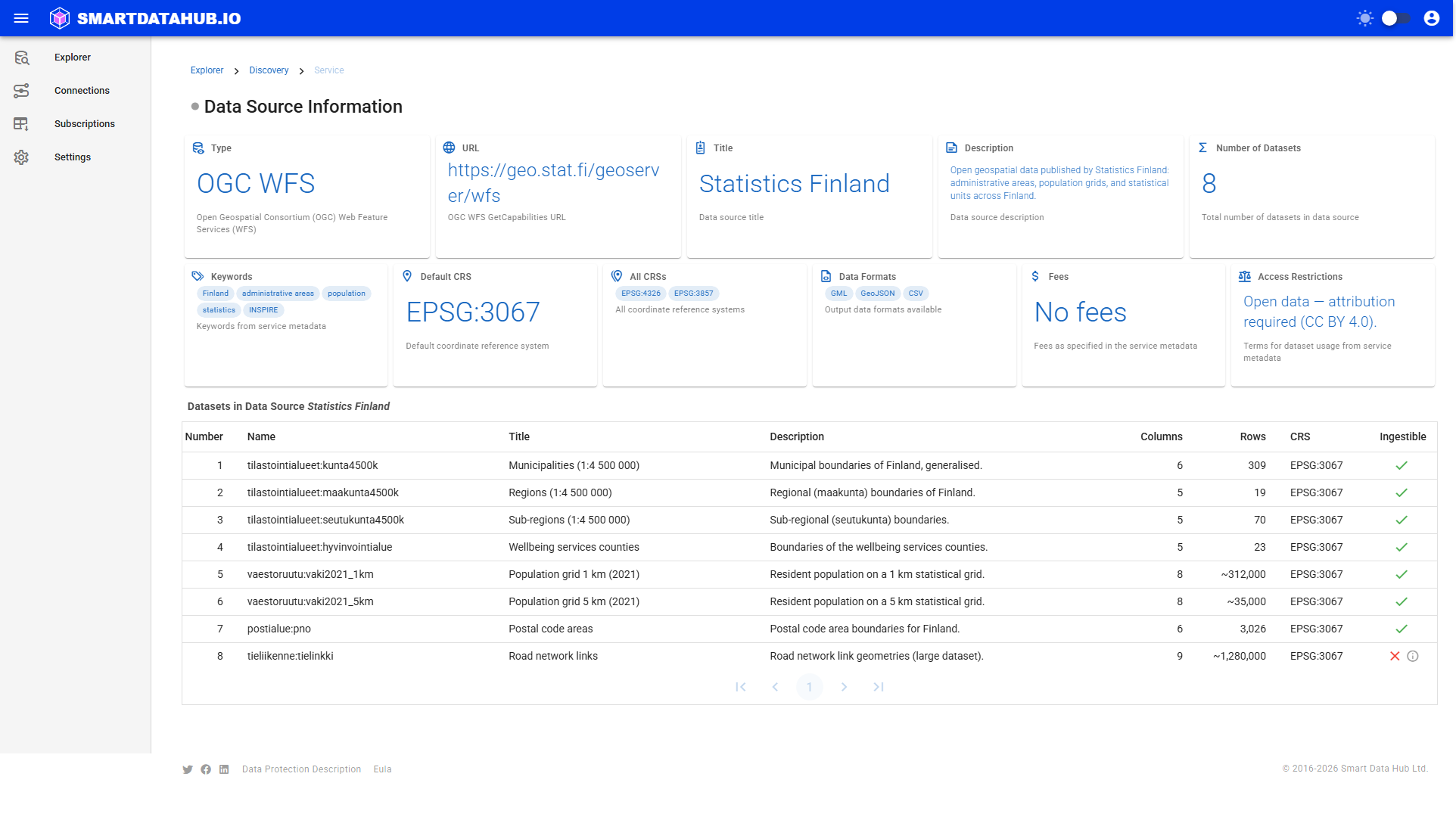
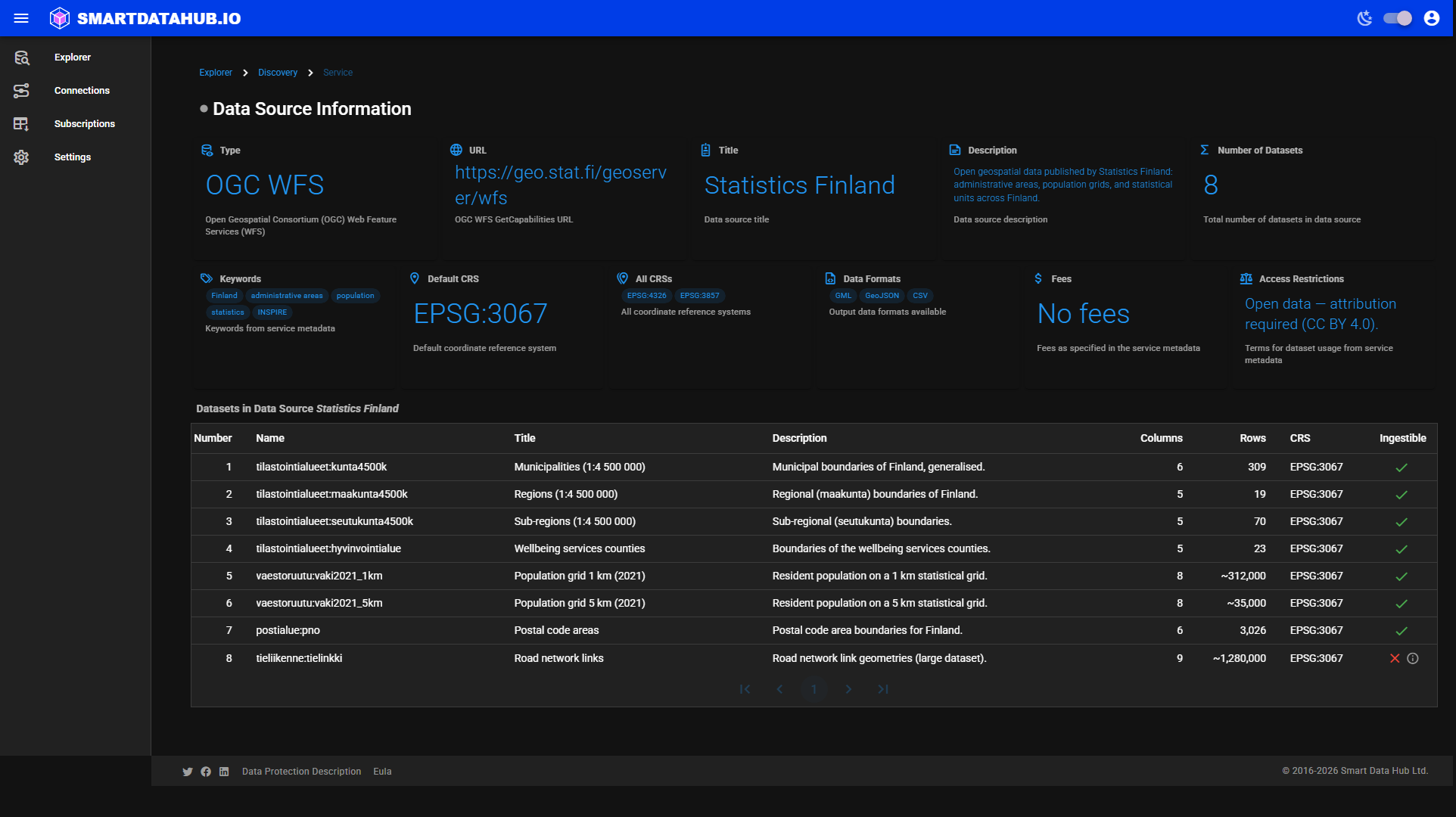 Discovery — datasets listed within a single data source.
Status notes
Occasionally a data source is listed but shows "Couldn't load — try again". This means Geo Data Connector detected the source but could not fully read it during this request. Click the source anyway — a fresh attempt often succeeds.
If an entire service's dataset list shows "Couldn't fully load this service's datasets — try again" with an empty list, re-submit the same URL. A fresh attempt with its own time budget usually succeeds.
If Geo Data Connector finds nothing at a URL, it shows an alert: "No geospatial data sources were found at this URL." Try:
- Verifying the URL is correct and the service is online.
- Using the URL of the service's root or catalogue endpoint rather than a specific operation URL.
- Setting up a Connection if the service requires authentication.
Dataset details within a service
From the dataset list within a discovered service, click any row to open the Dataset Details page. Use Previous dataset and Next dataset to move through datasets in the service without returning to the list.
Service health indicator
A coloured dot next to the data source name on the Dataset Details page and Subscriptions screen indicates the current health of the source service:
- Green — the service is responding normally.
- Yellow/Orange — the service is responding but slower than usual.
- Red — the service is not responding or returning errors.
Hover over the dot to see uptime and average response time statistics.
Navigating back
Breadcrumb links at the top of each Discovery and Dataset Details page show where you are in the hierarchy and let you navigate back to any previous level.
Data responsibility
Data sources and datasets surfaced through exploration come from third-party services. You are responsible for reviewing and complying with any licensing terms or access restrictions that apply to data you retrieve. Smart Data Hub provides access but does not grant any rights to the data itself.