
Appearance
Settings
The Settings screen is accessible from the navigation menu. It has two tabs: Application Settings and Personal Access Tokens.
Application Settings tab
Notifications
Configure email notifications for retrieval results.
Notification email
Enter the email address where you want notifications sent. Leave blank to use the email address you signed in with. Click Save (or press Enter) to apply.
Notify on ingestion failure
When enabled, Geo Data Connector sends you an email whenever a retrieval run fails. Requires a notification email to be set.
Notify on ingestion success
When enabled, Geo Data Connector sends you an email whenever a retrieval run completes successfully. Requires a notification email to be set.
Notification emails include the dataset name, a friendly description of what happened, and the number of rows loaded (on success). They never contain internal identifiers, raw error codes, or technical infrastructure details.
Application Information
Read-only details for your account:
| Field | What it shows |
|---|---|
| Public ID | A unique identifier for your account — include this in support requests |
| Application version | The current version of Geo Data Connector |
| Tier | Your current tier (Free or Paid) |
Billing
On the free tier:
The Upgrade to Paid button launches the upgrade checkout flow via Stripe. After completing payment, your account is upgraded and the additional capabilities (recurring schedules, authenticated connections, higher limits) become available. If the button is disabled, the billing integration is still being configured — check back shortly.
On the paid tier:
The Manage billing button opens the Stripe billing portal, where you can update your payment method, view invoices, and manage your subscription.
Usage counters (free tier only)
On the free tier, the Application Settings tab also shows your current usage against the free tier limits:
| Counter | What it shows |
|---|---|
| Ingestion row limit | Maximum rows per dataset per run (10,000 on Free) |
| Active Subscriptions | Number of enabled subscriptions vs. the limit (X / 10) |
| Daily Ingestions | Number of retrieval runs today vs. the daily limit (X / 10), with a countdown to midnight UTC when the counter resets |
See Tiers and Limits for the full comparison between tiers.
Personal Access Tokens tab
Personal Access Tokens (PATs) allow you to use the Geo Data Connector API from scripts, integrations, or AI coding assistants.
Creating a token
- Click Create on the Personal Access Tokens tab.
- Enter a name for the token (e.g.,
"my-integration"or"claude-assistant"). - Choose an expiry: 30 days, 90 days, or 365 days.
- Confirm. The token value (starting with
gdc_pat_…) is shown once — copy it immediately and store it securely.
Using a token
Include the token in the Authorization header of every API request:
Authorization: Bearer gdc_pat_xxxxxxxxxxxxxxxxxxxxxxxxSee Using the API for a full description of what the API provides.
Revoking a token
Click Revoke next to any token in the list to permanently invalidate it. Revocation takes effect immediately — any request using that token will be rejected with a 401 response.
Tokens cannot be used to create or manage other tokens. PAT management is always done through the Settings screen in the web UI.
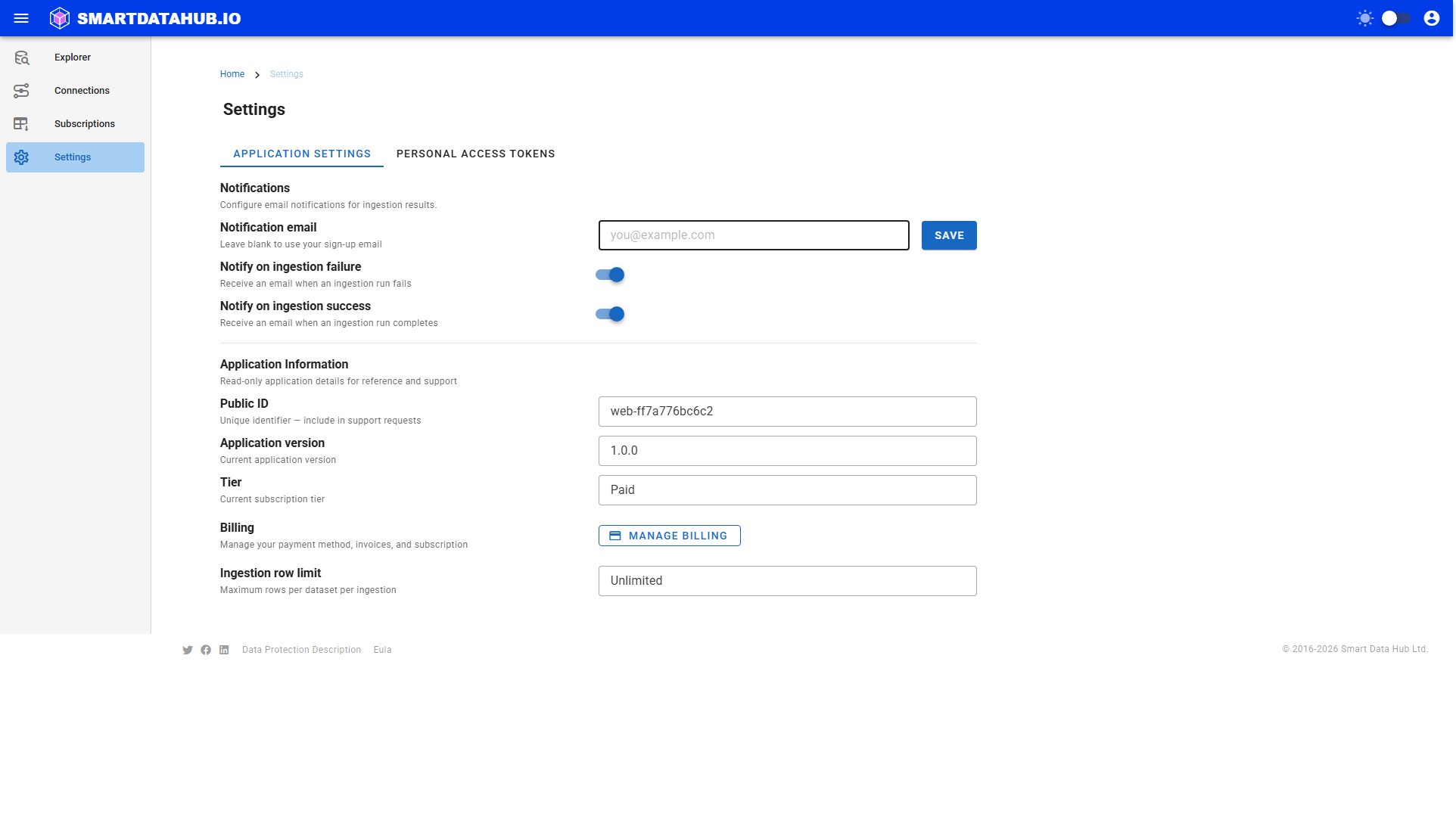
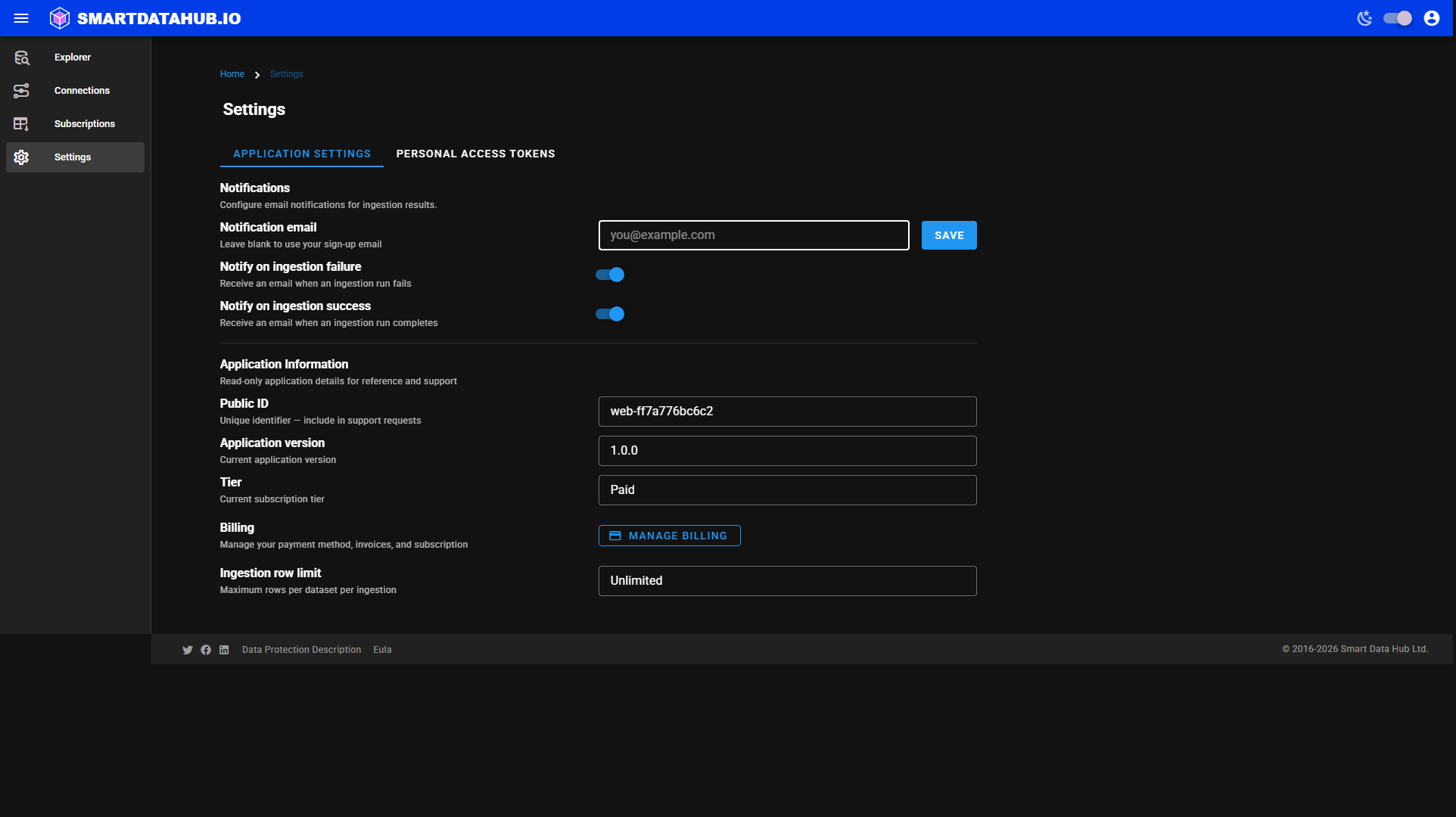 Settings — Application Settings tab showing notifications, tier, billing, and usage counters.
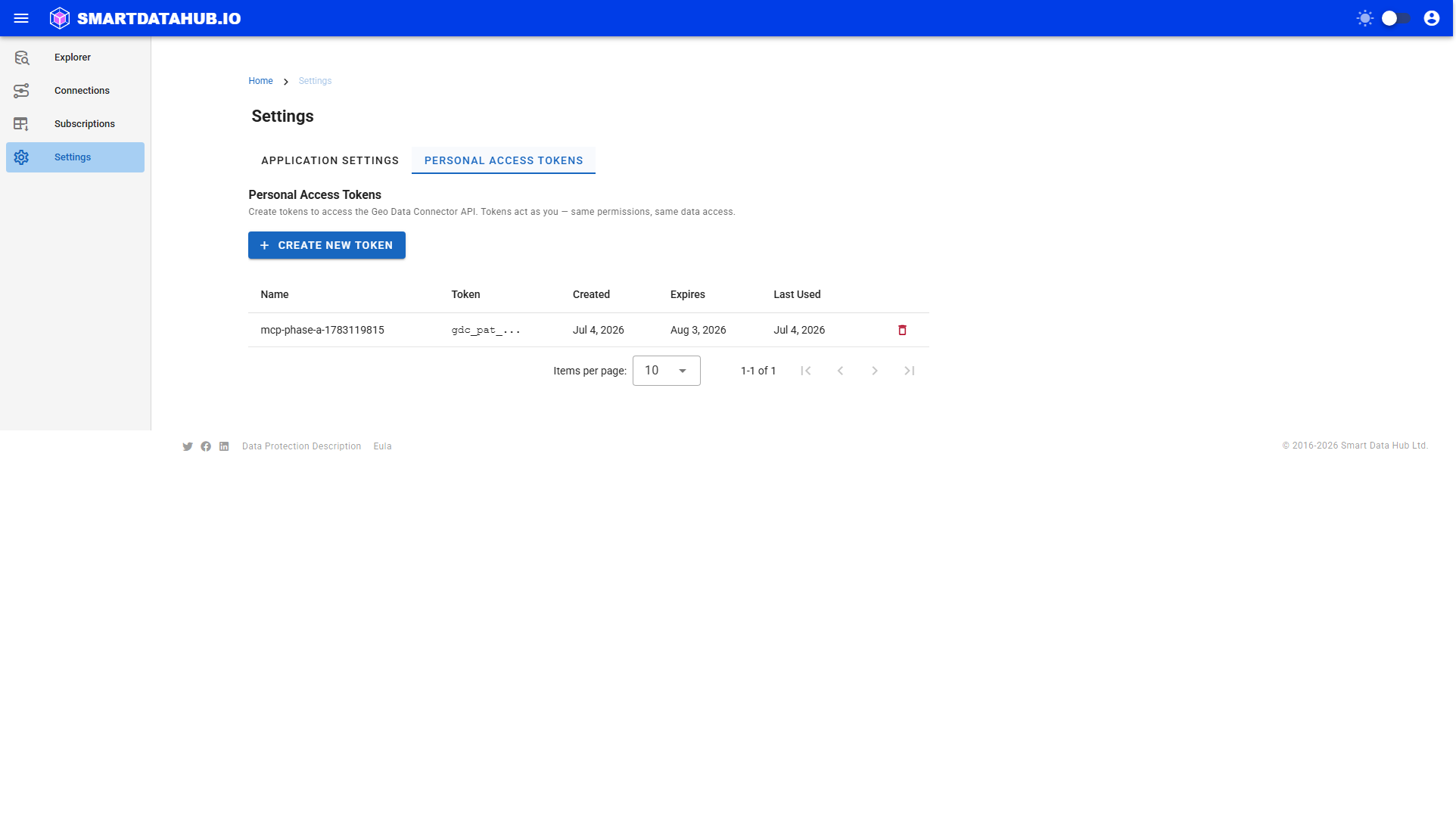
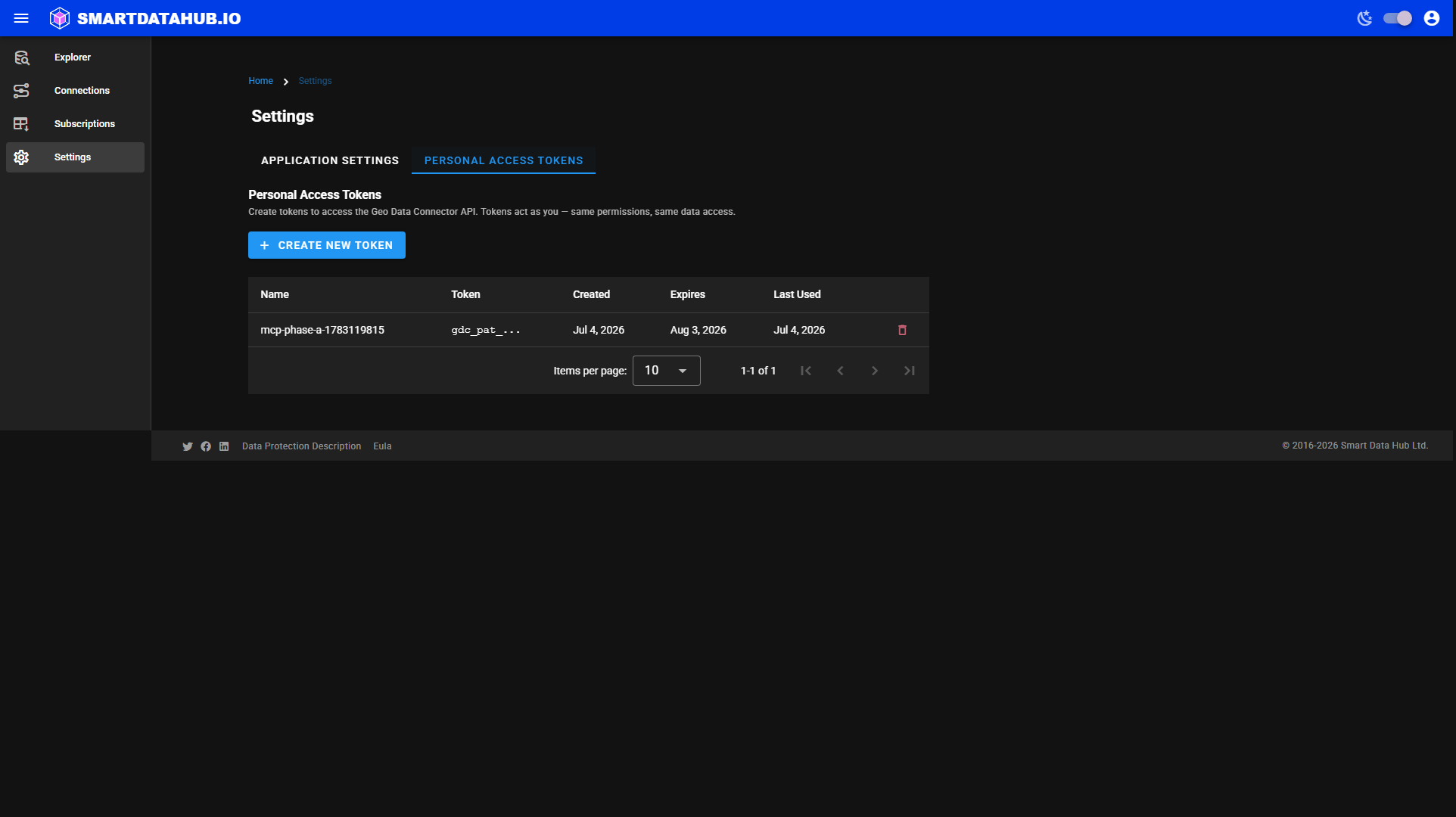 Settings — Personal Access Tokens tab.