
Appearance
Downloading Data
After a subscription run completes successfully, Geo Data Connector makes the retrieved data available for download. Download links are time-limited and valid for approximately 12 hours after the run completes.
Data handling
Geo Data Connector uses a transient transfer buffer to deliver your files. Delivered files are automatically purged within 24 hours — Smart Data Hub retains no copy of your data after the download links expire.
When data is available
Data becomes available to download when a subscription's status reaches SUCCESS. On the Subscriptions screen, the Download column shows a green Available chip with a countdown indicating how much time remains before the links expire.
Finding download links
From the Subscriptions screen
When the Download column shows Available, click the subscription row to open Subscription Details. The download section at the bottom of the page lists the available files.
From Subscription Details
The Subscription Details page shows a download section when the most recent run completed successfully. Each file is listed with its name and size.
Click any file link to download it. The link opens a pre-signed download URL that is valid until the expiry shown next to it.
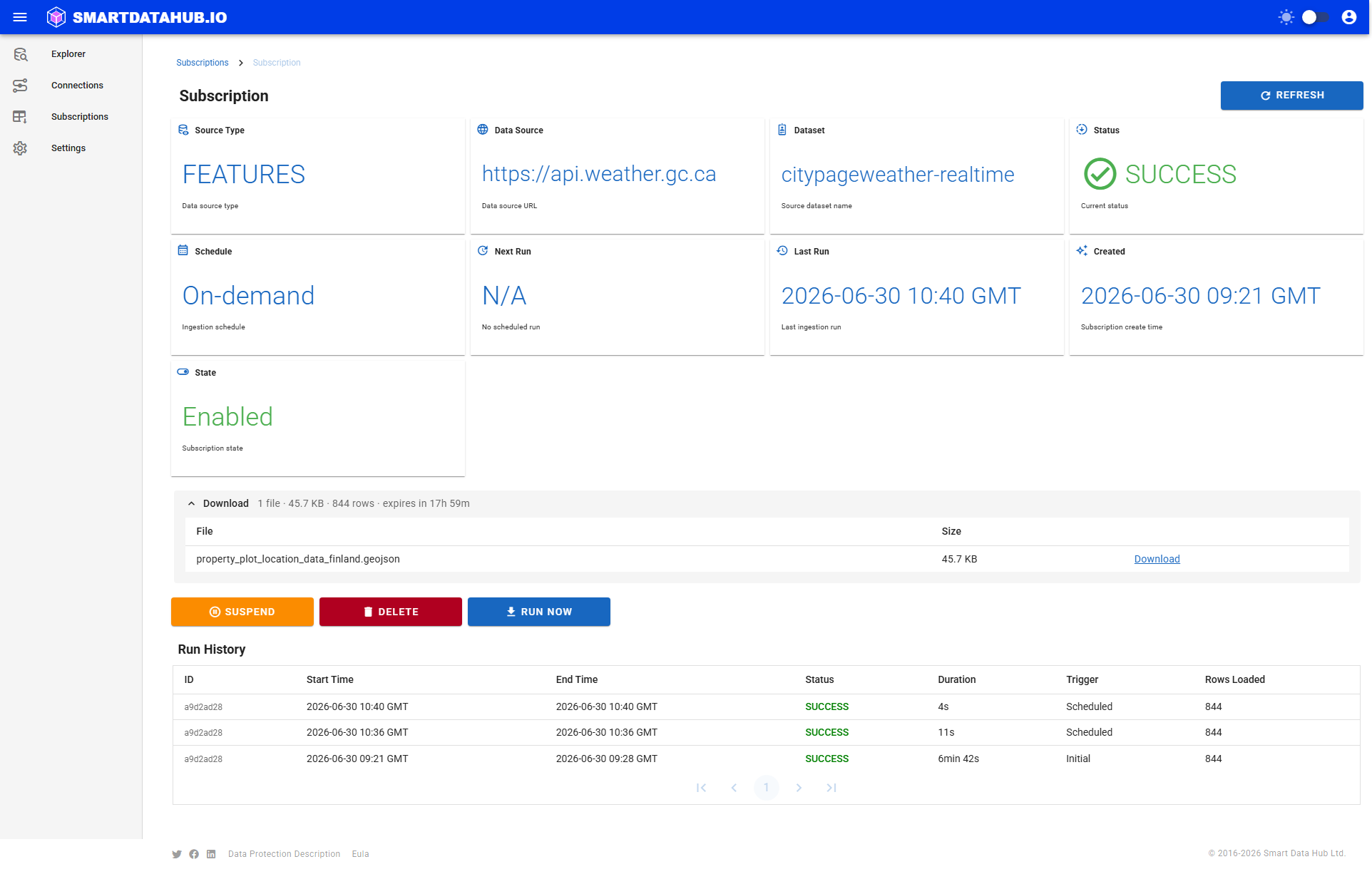
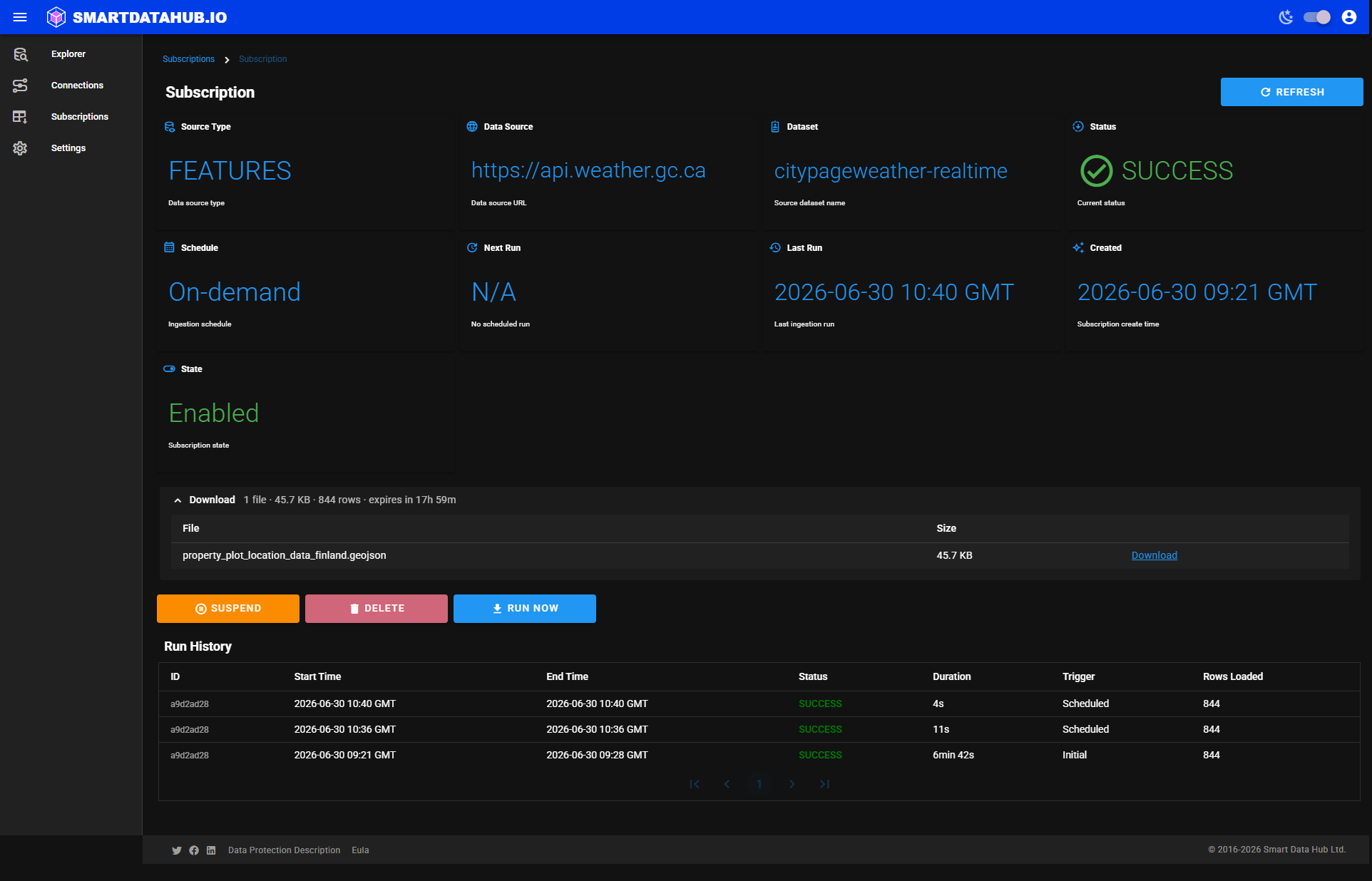 Download section on Subscription Details — file name, size, and expiring link for each file.
After the links expire
When download links expire, the Download column shows Expired and no links are available on the Subscription Details page.
To get fresh links:
- Go to the Subscriptions screen.
- Click Run Now (the download arrow icon) for that subscription.
- Wait for the run to reach SUCCESS.
- Click the row to return to Subscription Details and download the new files.
File format
Files are delivered as Apache Parquet (one or more part-*.parquet files per run). Geometry is stored as GeoJSON strings in the GEOM_WGS84 column (WGS 84 / EPSG:4326). Additional columns include GEOM_NATIVE (original CRS geometry), CRS_NATIVE (source CRS identifier), GEOM_TYPE (geometry type), GEOM_CENTROID (GeoJSON centroid point) with GEOM_CENTER_X/GEOM_CENTER_Y (centroid coordinates), and the H3 spatial-index columns (h3_indices, h3_resolution, h3_indices_coarse, h3_resolution_coarse — see below).
Loading into your platform
BigQuery
bash
# Load the Parquet files
bq load --source_format=PARQUET my_dataset.my_table part-*.parquet

# Create a typed view with valid geometries
bq query --use_legacy_sql=false '
CREATE OR REPLACE VIEW my_dataset.my_table_geo AS
SELECT *,
  ST_GEOGFROMGEOJSON(GEOM_WGS84, make_valid => TRUE) AS geom
FROM my_dataset.my_table'The make_valid => TRUE flag handles geometry edge cases from real-world data sources. The h3_indices column works with the free CARTO Analytics Toolbox H3 UDFs in BigQuery.
Snowflake
sql
-- Create a stage pointing to your downloaded files
CREATE OR REPLACE STAGE my_stage;
PUT file://part-*.parquet @my_stage;

-- Load into a table
CREATE OR REPLACE TABLE my_table
  USING TEMPLATE (SELECT * FROM TABLE(INFER_SCHEMA(LOCATION=>'@my_stage', FILE_FORMAT=>'(TYPE=PARQUET)')));
COPY INTO my_table FROM @my_stage FILE_FORMAT = (TYPE = PARQUET);

-- Convert once and store the typed columns (fast for repeated queries and joins)
CREATE OR REPLACE TABLE my_table_geo AS
SELECT *,
  TRY_TO_GEOMETRY(GEOM_WGS84) AS geom,
  TRY_TO_GEOGRAPHY(GEOM_WGS84) AS geog
FROM my_table;Converting inside every query re-parses the GeoJSON text — storing the converted columns once keeps spatial queries and joins fast as the data grows.
DuckDB
sql
SELECT *, ST_GeomFromGeoJSON(GEOM_WGS84) AS geom
FROM read_parquet('part-*.parquet');Python (geopandas)
python
import geopandas as gpd
import pandas as pd

df = pd.read_parquet("part-00000.parquet")
gdf = gpd.GeoDataFrame(df, geometry=gpd.GeoSeries.from_wkt(df["GEOM_WGS84"]), crs="EPSG:4326")GeoJSON in Parquet
The files use plain Parquet with GeoJSON strings — not GeoParquet. Most platforms need an explicit geometry conversion step (shown in the examples above).
Combining datasets with the H3 columns
Every delivered vector dataset carries pre-computed H3 spatial-index columns: h3_indices and h3_indices_coarse (arrays of cell IDs) with their h3_resolution / h3_resolution_coarse levels. They let you join datasets spatially with cheap integer matching instead of full geometry computation.
Two properties matter when combining datasets:
- Resolutions differ between datasets — each dataset's fine resolution is selected for its feature sizes, so fine cells from two datasets rarely match directly.
- Arrays can mix resolutions — area/line coverings are compacted (small cells replaced by their parent), so always normalize before comparing.
The reliable pattern is a two-stage join: normalize both sides' h3_indices_coarse cells to a common resolution with h3_toparent (use the coarsest resolution present in either dataset; 3 is a safe default), equality-join to get candidate pairs, then verify candidates with an exact geometry predicate.
sql
-- Databricks / Spark SQL (delivered Parquet loaded as tables a and b)
WITH a AS (
  SELECT *, h3_toparent(cell, 3) AS h3_norm
  FROM grid_table LATERAL VIEW explode(h3_indices_coarse) AS cell
),
b AS (
  SELECT *, h3_toparent(cell, 3) AS h3_norm
  FROM regions_table LATERAL VIEW explode(h3_indices_coarse) AS cell
),
candidates AS (
  SELECT DISTINCT a.grd_id, a.population, a.geom_wgs84 AS ga,
                  b.region_name, b.geom_wgs84 AS gb
  FROM a JOIN b ON a.h3_norm = b.h3_norm
)
SELECT grd_id, population, region_name
FROM candidates
WHERE ST_INTERSECTS(ST_GEOMFROMGEOJSON(ga), ST_GEOMFROMGEOJSON(gb));The same pattern works on any platform with H3 functions (Snowflake: H3_CELL_TO_PARENT + LATERAL FLATTEN; see the Snowflake app guide's worked recipe for a complete example including single-assignment roll-ups via the delivered geom_centroid). Skipping the geometry stage gives a fast approximate join — features near cell boundaries may match neighbouring cells.
Serverless transfer to Google Cloud Storage
If your destination is on Google Cloud, you can use Storage Transfer Service to copy files directly from the download URLs to your GCS bucket — no local download needed. Create a TSV URL-list manifest from the pre-signed URLs returned by GET /v1/data/{id}/files and submit it as a transfer job. The pre-signed URLs support the Range and Content-Length headers that STS requires.
Downloading via the API
If you are automating downloads or integrating with another system, the API provides a GET /v1/data/{id}/files endpoint that returns pre-signed download URLs programmatically. See the API Reference for details.
Troubleshooting downloads
See Download Not Available if:
- The Download column shows Available but links are missing or broken.
- Files expired before you could download them.
- The download fails partway through.