
Appearance
Managing Connections
paid tier only. Authenticated connections are available on the paid tier of Geo Data Connector. On the free tier, you can explore and retrieve data from public (unauthenticated) services only.
A Connection stores the URL and credentials for a data service that requires authentication. Once saved, Geo Data Connector uses the connection automatically whenever it detects a matching source URL during exploration or retrieval — you never need to enter credentials into a URL.
Why connections exist
Some data services restrict access to registered users or organizations. Instead of embedding credentials in a URL (which is insecure and unsupported), you save the credentials as a Connection. Geo Data Connector associates those credentials with the URL and applies them transparently.
The Connections screen
Click Connections in the navigation to open the Connections screen. The table lists your saved connections with:
| Column | What it shows |
|---|---|
| URL | The service URL for this connection |
| Type | The service type (WFS, WCS, etc.) |
| Name | Your label for this connection |
| Description | Optional notes |
| Datasets | Number of datasets discovered through this connection |
Click any connection row to explore that service immediately using the saved credentials.
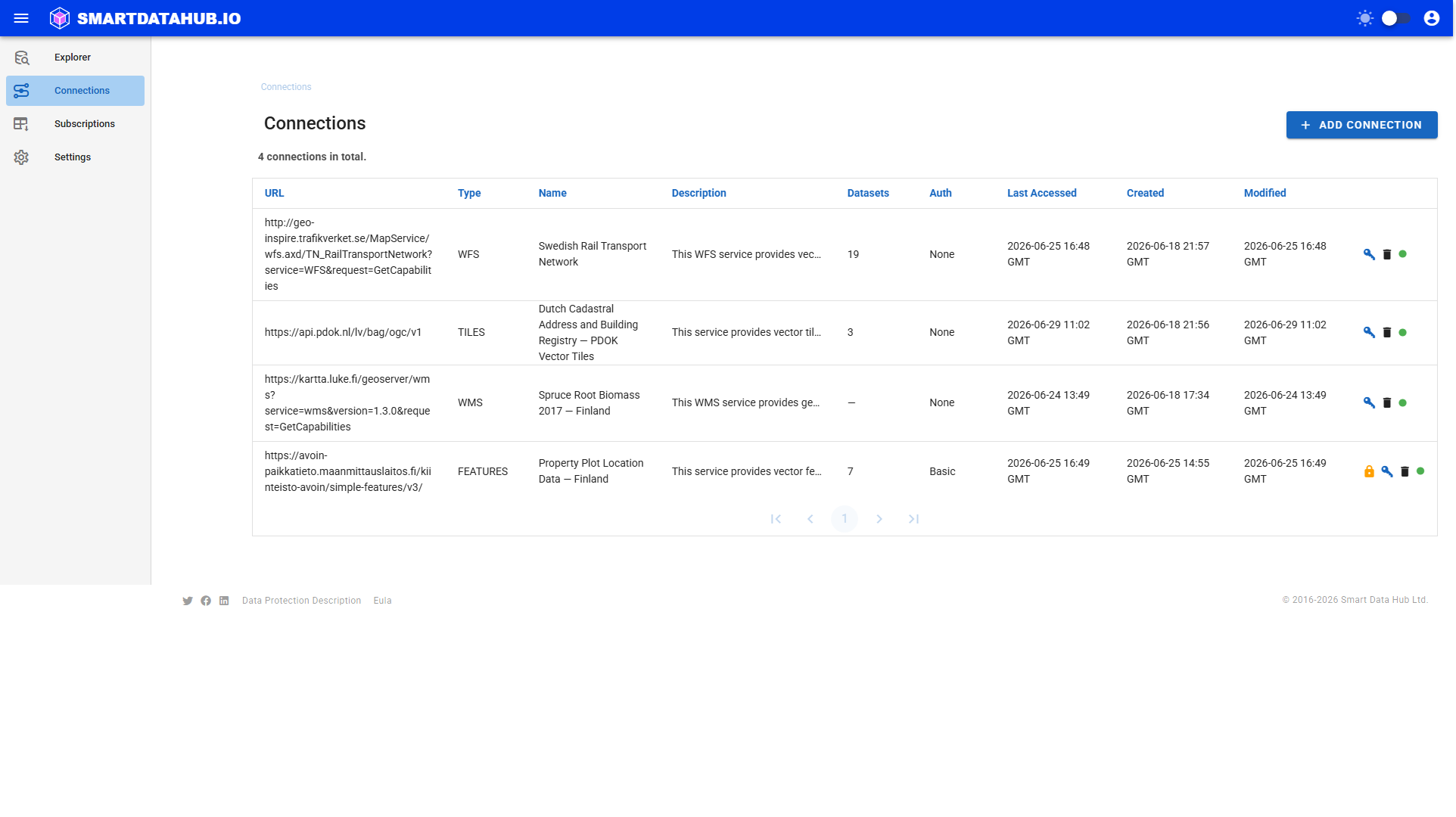
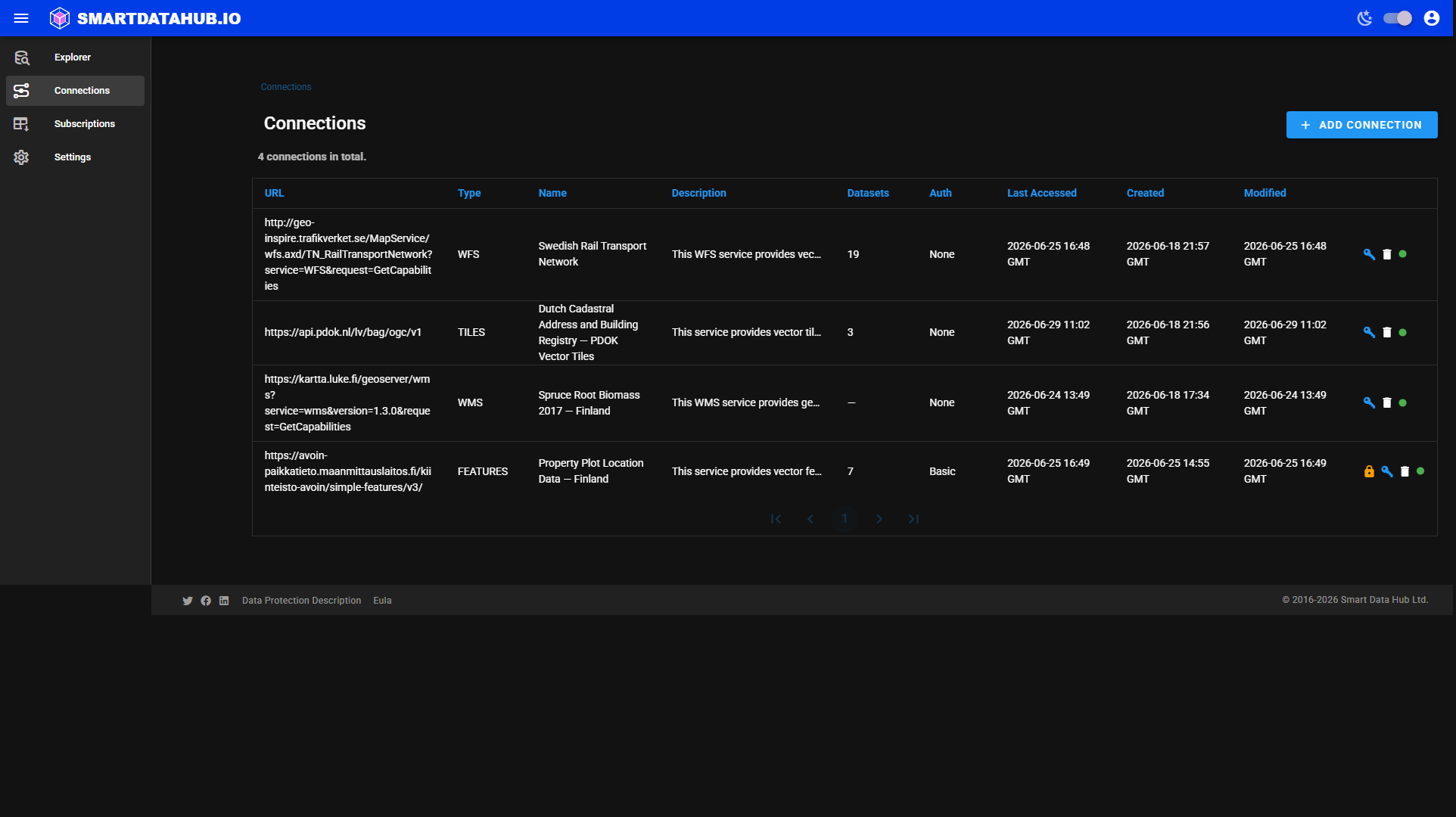 Connections — saved authenticated sources.
Adding a connection
- Click Add Connection (top right).
- Fill in the form:
- URL — the base URL of the service (without credentials or query parameters).
- Type — the service type.
- Name — a label to identify this connection (e.g., "City of Helsinki WFS").
- Description — optional notes.
- Auth method — choose Basic auth and enter the username and password.
- Save the connection.
Credentials are write-only — they are stored securely and are never displayed again after saving.
Using a connection for exploration
When you paste a service URL into the home screen search bar and click Explore, Geo Data Connector checks whether you have a connection matching that URL. If a basic-auth connection exists for that URL, its credentials are applied automatically to the exploration request.
You can also explore a connection directly by clicking its row on the Connections screen.
Using a connection during retrieval
When you subscribe to a dataset from an authenticated source, Geo Data Connector automatically resolves and applies the matching connection credentials for retrieval. You do not need to specify the connection separately.
Updating credentials
Click a connection row and edit the authentication fields. The new credentials are saved and used from that point forward.
Deleting a connection
Use the delete action within the connection edit form. Deleting a connection does not delete existing subscriptions for that source, but future retrieval runs for those subscriptions will no longer have credentials available.